
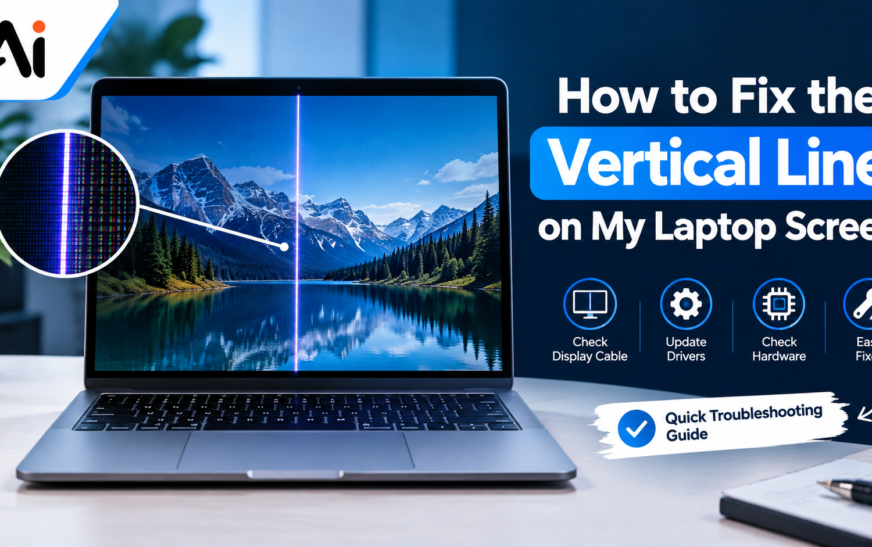
A sudden line on your laptop display can make it difficult to work, study, watch videos, or play games. If your laptop screen has a line, the cause could be something simple, such as a display driver problem, or something more serious, such as a damaged LCD panel or loose display cable. Before replacing the screen, it is important to identify whether the problem is software- or hardware-related.
If you are wondering How to Fix the Vertical Line on My Laptop Screen, start by restarting the computer and checking whether the line remains. Then update or reinstall the display driver, check the laptop display cable, connect an external monitor, and inspect the screen during BIOS or startup. If the line appears before Windows loads or remains after software troubleshooting, the problem may involve the display panel, cable, connector, or graphics hardware.
Key Takeaways
- A vertical line on laptop screen can be caused by software or hardware.
- Vertical lines on laptop screen may result from display driver problems, cable issues, or panel damage.
- A single line and multiple lines can have different causes.
- Updating or reinstalling the display driver can help resolve software-related problems.
- A loose laptop screen cable can create flickering or permanent display lines.
- An external monitor can help identify whether the built-in display is damaged.
- A screenshot and BIOS test can help narrow down the source of the problem.
- Physical damage may require laptop screen repair or laptop screen replacement.
Why Is There a Vertical Line on My Laptop Screen?
There are several possible reasons for a laptop screen vertical line. A line may appear because of a faulty display driver, damaged LCD panel, loose display cable, graphics hardware problem, overheating, or physical impact.
If a vertical line appeared on laptop screen after dropping the computer, pressing the display, or closing the lid forcefully, hardware damage should be considered. If it appeared after a Windows or graphics driver update, a software-related issue may be responsible.
Understanding the cause is the first step toward finding out how to remove vertical line from laptop screen without replacing unnecessary components.
Is the Vertical Line Caused by Software or Hardware?
Determining whether the vertical line on laptop screen hardware or software is responsible can save time and repair costs.
A software issue may affect the display after Windows starts and could potentially disappear after restarting or reinstalling the graphics driver. A hardware issue is more likely when the line appears during startup, remains visible in BIOS, or continues regardless of the operating system.
Before assuming that a line or display issue is caused by hardware, check your display and browser settings. If content simply appears too large or does not fit correctly on the display, see our guide on How to Zoom Out on Computer.
Single vs. Multiple Vertical Lines on a Laptop Screen
The number and appearance of lines can provide useful clues during laptop screen line troubleshooting.
A single vertical line on laptop screen may be associated with an individual column of pixels, a display panel fault, or a connection problem. If the line is perfectly straight and remains in the same position, the screen hardware should be considered.
Multiple vertical lines on laptop screen may point toward a more extensive panel, cable, graphics, or driver issue. If the lines appear together with flickering, color distortion, or screen artifacts, further testing is recommended.
The important point is not to diagnose the exact fault based only on the number of lines. Use the following tests to narrow down the source.
Restart Your Laptop and Check the Screen
A simple restart should be your first troubleshooting step when your laptop screen suddenly has vertical lines.
Temporary graphics glitches can sometimes produce a line or distorted display. Restart the laptop and check whether the line is still present.
If the line disappears after restarting but returns later, pay attention to when it returns. The timing may provide a clue about whether a driver or graphics-related problem is involved.
Reset the Graphics Driver
Windows provides a keyboard shortcut that can restart the graphics driver without completely restarting the computer.
Press Windows + Ctrl + Shift + B. Your screen may briefly go dark or flicker, and you may hear a short alert sound. If the problem was caused by a temporary graphics-driver glitch, the display may recover.
If the line remains unchanged, continue with the other troubleshooting steps.
Update or Reinstall the Display Driver
A laptop display driver problem can sometimes cause unusual lines, flickering, or distorted images.
To troubleshoot this possibility, check whether an updated graphics driver is available for your laptop. You can use Windows Device Manager or download the appropriate driver from your laptop or graphics hardware manufacturer’s official website.
If updating does not help, you can reinstall display driver laptop software and restart the computer.
A driver-related problem is more likely when the display looks normal during startup but develops laptop display vertical lines after Windows loads.
Roll Back the Display Driver After a Recent Update
If the vertical line appeared on laptop screen immediately after installing a graphics driver update, rolling back the driver may be worth considering.
Open the graphics device properties in Windows Device Manager and check whether the option to roll back the driver is available. This can be useful when a new driver introduces a compatibility problem.
If the rollback option is unavailable or does not resolve the problem, use the manufacturer’s recommended driver or continue with hardware diagnostics.
Check Your Screen Resolution and Refresh Rate
Incorrect display settings can sometimes create visual problems, although they are less likely to cause a permanent physical line.
Open Windows display settings and make sure the screen is using its recommended resolution. You can also check the available refresh-rate options and use a setting supported by the laptop display.
If the line on laptop screen remains in exactly the same physical location after changing supported display settings, the problem may be unrelated to resolution or refresh rate.
Check the Laptop Screen in Safe Mode
Safe Mode loads Windows with a limited set of drivers and services. It can help determine whether a third-party driver or software component is contributing to the display problem.
If the display looks normal in Safe Mode but shows laptop screen lines during a normal Windows session, investigate recently installed graphics drivers, display software, or other system changes.
If the same line remains visible in Safe Mode, continue with hardware-related tests.
Check the Screen in BIOS or Startup
Another useful diagnostic method is to check whether the line appears before Windows starts.
Restart the laptop and enter BIOS or UEFI using the appropriate key for your device. If the line is already visible there, a Windows software problem becomes less likely.
If the laptop screen line disappears in BIOS but appears after Windows loads, investigate display drivers and operating-system settings first.
This test can help answer the question of how to test laptop display when troubleshooting a persistent screen problem.
Take a Screenshot to Check Whether the Screen Is Damaged
A screenshot can provide another useful clue.
Take a screenshot while the line is visible and open that screenshot on another device or external display. If the screenshot looks normal elsewhere while the physical laptop display still shows the line, the problem may be associated with the laptop’s built-in display rather than the image being generated by Windows.
This test can be particularly helpful when determining how to tell if laptop screen is damaged.
A screenshot test is not perfect for every hardware or graphics fault, so it should be used together with the BIOS and external-monitor tests.
Check the Laptop Display Cable
A laptop display cable problem is another possible cause of display lines. The cable connects the motherboard to the laptop screen and can become loose or damaged.
If the laptop screen cable loose connection changes when you move the lid, flickering or lines may appear or disappear.
You should not force the screen or repeatedly move the lid to test it. If you suspect a connection issue, have the laptop display connector problem inspected by a qualified technician, especially if you do not have experience opening laptops.
Does the Vertical Line Change When You Move the Laptop Lid?
Pay attention to whether the line changes when the laptop lid is opened or closed.
If the line appears, disappears, flickers, or changes when the display angle changes, a connection or cable issue becomes more plausible. Repeatedly moving the lid to reproduce the problem is not recommended because it could make an existing connection problem worse.
A damaged laptop display cable or connection near the hinge should be inspected by a technician if you are not comfortable opening the laptop yourself.
Test the Laptop With an External Monitor
An external monitor laptop screen test can help determine whether the built-in display is responsible.
Connect your laptop to an external monitor or TV using a compatible display connection. If the external display works normally while the laptop panel continues showing a line, the issue may be related to the built-in screen or its cable.
If the same graphical problem appears on both displays, investigate the graphics driver, GPU, or other hardware.
This is one of the most useful steps when trying to determine how to fix laptop display lines.
What Does an External Monitor Test Tell You?
The result of the external-display test can help separate different possibilities.
If the laptop’s built-in screen has lines but the external monitor displays normally, the laptop LCD panel, display cable, or connector becomes more important to investigate.
If both displays show similar lines or graphical artifacts, the problem may involve the graphics driver, GPU, motherboard, or another component responsible for generating the image.
This does not provide a definitive diagnosis by itself, but it helps determine which part should be investigated next.
How to Tell If the GPU or Laptop Screen Is Causing the Lines
A laptop GPU causing vertical lines is possible, but you should not assume that the GPU is responsible simply because lines appear.
Compare the results from three tests:
- Check whether the line appears in BIOS.
- Test the laptop with an external monitor.
- Compare the built-in screen with the external display.
If the built-in display has a persistent line while the external monitor remains normal, the screen or its connection deserves attention.
If both displays show the same artifacts, investigate the graphics driver and GPU. This is particularly relevant when you notice graphics card vertical lines laptop problems together with other graphical distortion.
Look for Physical Screen Damage
Inspect the screen carefully for cracks, pressure marks, dark patches, unusual colors, or other visible damage.
If you have vertical lines after laptop drop, the display panel or internal connection may have been damaged. Similarly, a laptop that has been squeezed inside a bag or subjected to pressure may develop a display problem.
If your screen has a dark mark rather than a vertical line, you can also learn about the causes and solutions for Black Spot on Computer Monitor.
Do not press the panel in an attempt to remove the line. Pressure can cause additional damage to an already damaged display.
How to Fix Black, White, Green, or Colored Vertical Lines
Different types of display lines can appear on a laptop.
Black Vertical Line on Laptop Screen
A black vertical line on laptop screen may be related to a damaged LCD panel, display cable, or connection. Check whether it appears during startup and test the laptop with an external monitor.
White Vertical Line on Laptop Screen
A white vertical line on laptop screen may indicate a display panel or connection problem. If it remains in the same position after restarting and driver troubleshooting, hardware inspection may be necessary.
Green Vertical Line on Laptop Screen
A green vertical line on laptop screen can be associated with the display panel, cable, or graphics output. An external monitor test can help identify the source.
Pink Vertical Line on Laptop Screen
A pink vertical line on laptop screen may also indicate a display or graphics issue. Check whether it appears in BIOS and whether an external monitor shows the same problem.
Colored Vertical Lines on Laptop Screen
Multiple colored vertical lines on laptop screen may indicate a more significant display or graphics problem, particularly when they appear together with flickering or distorted images.
A related display problem is a persistent shadow or image effect. If you notice one on your screen, see our guide to Shadow on Computer Monitor.
How to Fix Vertical Lines After Dropping a Laptop
If vertical lines on laptop screen after dropping it appeared immediately following an impact, hardware damage is more likely than a simple software glitch.
The impact may have affected the display panel, internal cable, connector, or another component. Restarting and updating drivers are still reasonable initial checks, but persistent lines following physical damage generally require hardware inspection.
Avoid pressing the affected area or attempting to bend the screen back into position.
Can Overheating Cause Vertical Lines on a Laptop Screen?
Excessive heat can contribute to graphics instability and other display-related problems, particularly when the laptop also becomes unusually hot, slows down, crashes, or produces graphical artifacts.
However, overheating should not automatically be considered the cause of a permanent single line. If the line remains in the same location regardless of temperature or system activity, the display panel or connection should also be investigated.
Keep the laptop’s ventilation openings clear and avoid using it on surfaces that block airflow.
Are Vertical Lines on a Laptop Screen Temporary or Permanent?
Some display problems are temporary and may disappear after restarting the graphics driver, rebooting Windows, or correcting a driver issue.
A persistent line that remains in BIOS, appears consistently in the same location, or follows physical damage is more suggestive of a hardware problem.
If you are asking can a laptop screen vertical line be fixed, the answer depends entirely on its underlying cause. Software-related problems can often be addressed through troubleshooting, while damaged panels may require replacement.
When Does a Laptop Screen Need Replacement?
If you have tried software troubleshooting and the line remains, the laptop may have a laptop screen hardware problem.
A replacement may be considered when:
- The line appears in BIOS or during startup.
- The display has visible physical damage.
- An external monitor works normally while the built-in display does not.
- The screen has permanent lines or severe distortion.
- A technician confirms that the LCD panel is defective.
A technician should first determine whether the problem is the cable, connector, panel, or graphics hardware before recommending laptop LCD replacement.
Should You Repair or Replace the Laptop Screen?
The correct solution depends on which component has failed.
If the issue is a loose connection, laptop screen repair may resolve the problem without replacing the entire panel. If the LCD panel itself is damaged, laptop screen replacement may be necessary.
For an older laptop, compare the replacement cost with the computer’s age and overall condition. For a newer laptop, repairing or replacing the affected component may be more practical.
A professional diagnosis is useful before purchasing a replacement screen because different laptop models require specific panel types and connectors.
How Much Does Laptop Screen Repair Cost?
The cost of laptop screen repair varies depending on the laptop model, display size, resolution, panel technology, replacement-part availability, and labor costs.
A loose cable may be less expensive to address than replacing an entire LCD panel. Therefore, getting the exact fault diagnosed before buying a replacement screen can help avoid unnecessary expense.
How to Prevent Vertical Lines on a Laptop Screen
Protecting your laptop from physical damage can reduce the risk of developing laptop screen lines.
Avoid placing heavy objects on the closed laptop, pressing against the display, or carrying the computer without adequate protection. Open and close the lid gently and avoid exposing the laptop to excessive moisture or impact.
Keep the graphics driver and operating system updated, maintain proper ventilation, and avoid blocking the laptop’s cooling vents.
If you are experiencing other computer problems beyond the display, our guide on Mac Computer Freezing covers common troubleshooting steps for an unresponsive Mac.
Conclusion
If you are still wondering How to Fix the Vertical Line on My Laptop Screen, begin with the simplest checks: restart the laptop, reset or update the graphics driver, check display settings, and test the computer with an external monitor. Then check whether the line appears during startup or BIOS.
A persistent vertical line on laptop screen may point to a loose cable, damaged display connector, defective LCD panel, or graphics hardware issue. Identifying the source before replacing parts is important because not every display line requires a new screen.
The most useful approach is to work through the diagnosis step by step. Compare the built-in display with an external monitor, check BIOS, try a screenshot, and consider recent driver updates or physical damage. Once the source is identified, you can decide whether software troubleshooting, cable repair, laptop LCD replacement, or professional screen repair is appropriate.
FAQs
Why is there a vertical line on my laptop screen?
A vertical line can result from a display driver problem, loose cable, damaged LCD panel, graphics hardware issue, overheating, or physical damage.
Can a vertical line on a laptop screen be fixed?
Yes, depending on the cause. Software-related problems may be resolved through driver troubleshooting, while hardware problems may require cable repair or screen replacement.
Can a loose cable cause vertical lines?
Yes. A loose or damaged display cable can cause lines, flickering, distorted colors, or an intermittent display.
How do I remove a vertical line from my screen?
Restart the laptop, reset or update the display driver, check display settings, test an external monitor, and check whether the line appears during startup or BIOS. Persistent hardware-related lines may require professional repair.
Does a vertical line mean my laptop screen is damaged?
Not always. A vertical line can be caused by software, the display cable, graphics hardware, or the screen panel itself. Diagnostic tests can help identify the source.
Should I replace my laptop screen if it has lines?
Not immediately. First identify whether the problem is caused by the display driver, cable, connector, graphics hardware, or LCD panel. Screen replacement should generally be considered after the actual cause has been confirmed.
How do I know if my laptop GPU is causing vertical lines?
Connect the laptop to an external monitor. If the same lines or graphical artifacts appear on both displays, the graphics driver or GPU may require further investigation.
Why does my laptop screen have vertical lines after I dropped it?
A drop can damage the LCD panel, display cable, or internal connector. If the lines appeared immediately after the impact and remain visible during startup, professional hardware inspection may be necessary.
Can a screenshot show the vertical line on my laptop screen?
A screenshot can help with diagnosis. If the screenshot looks normal on another display while the physical laptop screen still shows the line, the problem may be related to the laptop’s physical display rather than the image being rendered.
Are vertical lines on a laptop screen a hardware problem?
They can be. Persistent lines that appear in BIOS or remain after driver troubleshooting are more suggestive of hardware, although the exact cause should be confirmed through additional testing.