
Restarting a computer is one of the most effective ways to fix temporary software glitches, apply critical system updates, and clear out cluttered memory. While it might seem like a simple task, knowing how to restart a computer using different methods across Windows, macOS, and Linux ensures you can recover your machine even when the screen freezes or the mouse stops responding.
Why Restarting a Computer Is Important
Operating systems handle millions of background tasks simultaneously. Over time, applications leave behind temporary data fragments in your Random Access Memory (RAM). When RAM fills up with leftover cache files, your system slows down, applications crash, and overall performance drops.
Restarting flushes your RAM entirely. It clears out unneeded background processes, resets frozen services, and gives your hardware a clean slate without altering your personal files.
Restarting is also required to write new dynamic link libraries and update system binaries after major OS updates or driver installations.
When You Should Restart a Computer
Knowing when to initiate a reboot saves time and prevents potential data loss. You should restart your machine when experiencing specific trigger events:
- Software crashes repeatedly or runs unusually slow.
- System updates finish downloading and require a reboot to finalize installation.
- New hardware drivers or internal expansion cards are installed.
- Wi-Fi, Bluetooth, or audio services suddenly drop connectivity.
- Peripheral devices like external mice or keyboards fail to respond.
How Restart a Computer on Windows
Windows offers several ways to reboot, ranging from simple graphical interface clicks to command-line overrides for unresponsive systems.
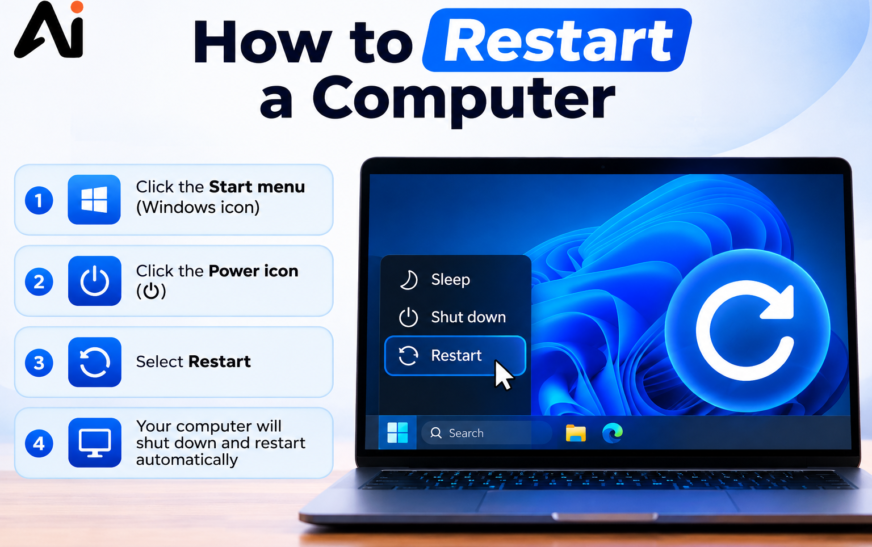
Restart a Windows 11 Computer
Windows 11 places its main power controls centrally on the taskbar interface.
To reboot cleanly:
- Click the centered Start icon or press the Windows key.
- Select the Power button located in the lower-right corner of the Start menu panel.
- Choose Restart from the pop-up list.
Restart a Windows 10 Computer
Windows 10 keeps its Start menu aligned to the left side of the screen.
Follow these steps:
- Click the Start menu icon at the bottom-left corner.
- Click the Power icon positioned directly above the Start button.
- Select Restart.
Restart Using Keyboard Shortcuts
If your mouse stops working, keyboard shortcuts let you reboot safely.
Press Ctrl + Alt + Delete simultaneously. When the security screen pops up, use your Tab key to navigate down to the Power icon in the bottom-right corner, press Enter, select Restart, and press Enter again.
Alternatively, press Alt + F4 while on your desktop. This brings up the shut-down window. Use the arrow keys to scroll to Restart and hit Enter.
Restart Using Command Prompt or PowerShell
Command-line methods are helpful for power users or when the graphical desktop environment stops responding.
Open Command Prompt or PowerShell by pressing Windows key + R, typing cmd, and hitting Enter.
Type the following command and press Enter:
shutdown /r /t 0
The /r flag signals a reboot, while /t 0 forces the process to occur instantly with a 0-second delay.
Force Restart a Frozen Windows PC
When your screen freezes completely and neither the mouse nor keyboard responds, a hard reboot is necessary.
Press and hold down the physical Power button on your computer case or laptop chassis for roughly 5 to 10 seconds. Keep holding it until the screen goes black and fan noise stops completely.
Wait about 30 seconds for internal capacitors to drain electricity, then press the power button once to turn the machine back on.
How Restart a Computer on Mac
macOS handles reboots through straightforward system controls, built-in hotkeys, and emergency key combinations.
Restart from the Apple Menu
The standard reboot option in macOS is accessible from any open workspace.
- Click the Apple icon in the top-left corner of your screen.
- Select Restart… from the drop-down menu.
- A confirmation window will ask if you want to reopen current windows when logging back in. Uncheck this box if you are troubleshooting a crash, then click Restart.
Restart Using Keyboard Shortcuts
Mac desktop users and MacBook owners can trigger a software restart using keyboard combinations:
- Press Control + Command + Power Button (or Control + Command + Touch ID / Eject button). Hold all keys until the screen turns dark and the Mac reboots.
Force Restart an Unresponsive Mac
If macOS locks up completely:
- Press and hold the Power Button or Touch ID sensor for roughly 10 seconds until the display turns off.
- Wait 15 seconds.
- Press the Power Button or Touch ID sensor once to power up the Mac.
How Restart a Computer on Linux
Linux distributions vary by desktop environment, but terminal commands and force-reboot shortcuts work consistently across major distributions like Ubuntu, Debian, Fedora, and Arch.
Restart Using the Desktop Interface
For Ubuntu running GNOME, Fedora, or Linux Mint:
- Click the System Tray / Quick Settings region in the upper-right corner.
- Click the Power icon.
- Select Restart from the option list and confirm when prompted.
Restart Using the Terminal
Open a terminal session using Ctrl + Alt + T.
Execute the following reboot command:
sudo reboot
Enter your administrator password when prompted. You can also use the systemd equivalent:
sudo systemctl reboot
Force Restart a Linux System
If the graphical interface hangs, switch to a virtual console by pressing Ctrl + Alt + F3. Log in with your credentials and type sudo reboot.
If the entire system is unresponsive, use the safe low-level REISUB method. Hold down Alt + SysRq (Print Screen) and slowly type the following keys in exact sequence, leaving a 2-second pause between each letter:
R – E – I – S – U – B
This safely unmounts drives, terminates processes, and restarts the system kernel without corrupting files.
How to Restart a Laptop vs. a Desktop Computer
Restarting laptops and desktops differs primarily in power delivery and battery presence:
- Laptops: Laptops draw continuous power from an internal battery. If a laptop freezes and holding the power button fails, disconnecting the charger does not shut it down. You must hold the physical Power button until the battery cut-off triggers. Some modern enterprise laptops feature a dedicated emergency reset hole on the bottom plate that can be pressed using a paperclip.
- Desktops: Desktop towers receive power directly from an electrical outlet. In severe freeze situations where the front chassis power switch fails, toggling the rocker switch on the Power Supply Unit (PSU) at the back of the case cuts all system power instantly.
How to Restart a Computer Remotely
System administrators often need to reboot machines across local networks or remote locations.
Windows Remote Reboot
Use the shutdown command directed at a target network IP address via Command Prompt:
shutdown /m \\192.168.1.50 /r /f /t 0
The /f parameter forces running applications to close without waiting for user input.
Mac and Linux Remote Reboot (SSH)
Open a terminal or SSH client and establish a remote connection:
ssh username@192.168.1.50
Once logged in, run sudo reboot for Linux or sudo shutdown -r now for macOS.
How to Restart a Computer in Safe Mode
Safe Mode starts your operating system with minimal drivers, essential software services, and default configuration settings. It is ideal for removing stubborn malware or fixing bad graphics drivers.
Safe Mode on Windows
- Hold down the Shift key while clicking Restart in the Start menu.
- When the Choose an option screen appears, navigate to Troubleshoot > Advanced options > Startup Settings.
- Click Restart.
- After your PC reboots, press 4 or F4 to boot into standard Safe Mode.
Safe Mode on macOS
- Apple Silicon Macs (M1/M2/M3/M4): Shut down your Mac. Press and hold the Power button until Loading startup options appear. Select your main drive, press and hold the Shift key, then click Continue in Safe Mode.
- Intel Macs: Turn on your Mac and immediately press and hold the Shift key until the login window appears.
Safe Mode on Linux
During the initial machine boot, hold down Shift (for BIOS systems) or press Esc (for UEFI systems) to open the GRUB bootloader screen. Highlight your primary Linux kernel, select Advanced Options, choose the entry marked with (recovery mode), and press Enter.
What to Do If Your Computer Won’t Restart
If your machine hangs during the restart process or fails to post back up, systematically run through these checks:
Check Connected Devices
External hardware can disrupt the Computing boot initialization sequence. Disconnect all external USB flash drives, external hard drives, printers, and docking stations. Leave only your primary monitor, keyboard, and mouse attached, then attempt to restart.
Close Frozen Applications
A background process that refuses to close can hold up the operating system reboot shutdown queue.
- On Windows: Press Ctrl + Shift + Esc to open Task Manager, right-click any unresponsive app marked Not Responding, and click End task.
- On Mac: Press Option + Command + Esc, highlight the stubborn app, and click Force Quit.
Run Startup Repair
If Windows repeatedly hangs at the loading screen:
- Interrupt the boot sequence three times in a row by holding down the power button as soon as the Windows logo appears.
- This triggers the Automatic Repair environment.
- Select Advanced options > Troubleshoot > Advanced options > Startup Repair.
Check for System Updates
Corrupted operating system components often cause reboot stalls. Ensure all operating system patches, firmware builds, and motherboard BIOS/UEFI packages are updated.
Scan for Hardware Problems
Faulty RAM modules or failing storage drives (HDDs/SSDs) frequently cause systems to freeze during restart cycles. Run built-in diagnostics like Windows Memory Diagnostic (mdsched.exe) or Apple Diagnostics (hold D during boot on Intel Macs, or hold the power button on Apple Silicon).
Common Restart Problems and Their Solutions
| Problem Scenario | Root Cause | Primary Fix |
| Stuck on Restarting Screen | Background service failing to stop cleanly | Wait 5 minutes; if still stuck, perform a 10-second hard power button hold. |
| Infinite Restart Loop | Corrupted boot files or driver conflict | Boot into Safe Mode and uninstall recent updates or graphics drivers. |
| Black Screen After Restart | Graphics driver display handoff failure | Press Windows key + Ctrl + Shift + B to reset the Windows graphics driver. |
| Slow Restart Performance | High startup app count or fragmented drive cache | Disable unnecessary apps in Task Manager/System Settings startup tab. |
Restart vs. Shut Down: What’s the Difference?
Many users assume shut down and restart do the exact same thing, but modern operating systems treat them differently due to fast-startup features:
- Shut Down (Windows Fast Startup): When Fast Startup is enabled in Windows 10/11, choosing Shut Down does not clear system state completely. Instead, Windows closes user applications, freezes the core OS kernel state, and writes it to your drive (similar to hibernation). When you turn the PC back on, it reads that saved file to boot faster—meaning kernel errors remain loaded.
- Restart: Selecting Restart bypasses Fast Startup entirely. It completely terminates all running services, clears RAM contents entirely, shuts down the kernel, and reinitializes hardware components from scratch.
Best Practices Before Restarting Your Computer
To prevent data loss and avoid file corruption, follow these steps before initiating a reboot:
- Save work across all open applications, text editors, and documents.
- Bookmark important web browser pages or enable session restore in browser settings.
- Safely eject external storage devices to prevent drive volume corruption.
- Wait for active file transfers, software installations, or cloud sync tasks to complete.
Final Thoughts
Restarting your computer is the standard first step for basic troubleshooting across Windows, Mac, and Linux. Whether you choose to reboot through desktop menus, key shortcuts, or terminal commands, performing a clean restart clears out accumulated system clutter and restores your machine’s speed and stability.
FAQs
How often should I restart my computer?
Restarting your computer once a week is ideal for general maintenance. It clears out cached memory leaks, closes unnecessary background processes, and ensures pending security updates are applied regularly.
Will restarting delete my files?
No. Restarting only clears temporary data stored in volatile memory (RAM). All saved files, personal documents, installed applications, and user settings stored on your hard drive or SSD remain untouched. Unsaved work in open programs, however, will be lost.
Is restarting the same as resetting a computer?
No. Restarting turns your machine off and back on while leaving all files and system configurations intact. Resetting (or factory resetting) wipes your data, apps, and settings, returning the operating system back to its original factory state.
What should I do if my computer freezes during restart?
If the computer stays stuck on a spinning restart wheel for longer than 5 to 10 minutes, perform a forced hardware shutdown by pressing and holding the physical power button until the system cuts off completely. Wait 30 seconds, then turn it back on normally.
Can I restart my computer without using the power button?
Yes. You can restart without touching the physical button by using software menus (Start Menu on Windows, Apple Menu on macOS), keyboard shortcuts (Ctrl + Alt + Delete or Alt + F4), or command-line terminal commands (shutdown /r /t 0 or sudo reboot).