
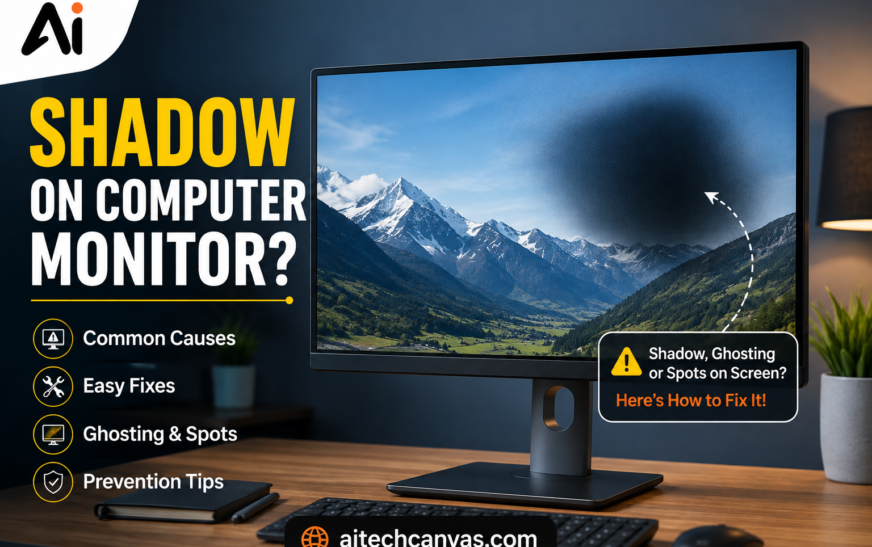
Seeing a shadow on computer monitor can be frustrating, especially when a dark patch, blurry outline, or duplicate image suddenly appears on the screen. The good news is that not every shadow means your monitor is permanently damaged. It may be caused by ghosting, image retention, an incorrect refresh rate, a loose cable, display settings, backlight problems, or physical LCD panel damage.
A shadow on computer monitor can be caused by monitor ghosting, image retention, burn-in, a damaged LCD panel, backlight problems, loose cables, incorrect refresh-rate settings, or GPU/display issues. First, check the cable, refresh rate, resolution, and monitor settings. If the shadow remains on the monitor’s own menu or appears on another device, the problem is more likely hardware-related.A shadow or ghost-like image on a computer monitor is often caused by monitor ghosting, an incorrect refresh rate, faulty display cables, or temporary image retention.
Key Takeaways
- Monitor ghosting usually appears as a trailing or blurry image behind moving objects.
- A dark shadow on monitor screen that stays in one location may indicate panel, backlight, pressure, or physical damage.
- Image retention can temporarily leave a faint previous image on the display.
- Permanent burn-in is more common with OLED displays than traditional LCD/LED monitors.
- A faulty HDMI, DisplayPort, USB-C, or adapter connection can create unusual display artifacts.
- Increasing the monitor’s refresh rate and adjusting its response-time or overdrive setting may reduce ghosting.
- If the shadow appears even inside the monitor’s own OSD menu, the monitor itself is more likely to be responsible.
- Never press, rub, or massage an LCD panel to try to remove a dark patch.
- A damaged LCD panel generally cannot be repaired economically and may require panel or monitor replacement.
What Does a Shadow on a Computer Monitor Actually Mean?
The phrase shadow on computer monitor can describe several different display problems. A user might see a faint duplicate image, a dark patch, a blurry trail behind moving objects, or a previously displayed image that remains visible.
These symptoms can look similar but have different causes.
For example, if a character in a game appears to have a faint trail behind it while moving, the problem is probably monitor ghosting. If a static logo remains visible after changing the content, it could be image retention or burn-in.
On the other hand, if one section of the screen is consistently darker than the rest, you may be dealing with a Black Spot on Computer Monitor, which can be caused by an LCD panel issue, backlight failure, pressure damage, or another hardware component.
Understanding the type of shadow and Black Spot on Computer Monitor is therefore the first step toward finding the correct solution.
| Shadow on Computer Monitor | Black Spot on Computer Monitor |
|---|---|
| A shadow is usually a dark or faded area that may look like a patch, blur, or uneven shade. | A black spot is usually a distinct dark or black mark in a specific area of the screen. |
| It can be caused by backlight issues, pressure, panel problems, image retention, or display uniformity. | It can be caused by dead pixels, physical damage, LCD panel damage, pressure, or internal display defects. |
| The affected area may have soft or unclear edges. | The affected area often has clearer, sharper edges, especially when caused by dead pixels or physical damage. |
| A shadow may become more or less noticeable depending on the displayed content or brightness. | A black spot usually remains visible regardless of what is displayed on the screen. |
| It can cover a larger section of the monitor. | It is often a small, localized area, although physical damage can create larger black patches. |
What Causes a Shadow on Computer Monitor?
Monitor Ghosting
Ghosting occurs when pixels do not transition quickly enough between colors. When objects move rapidly across the screen, a faint trail can remain behind them.
It is particularly noticeable in:
- Fast-paced games
- Sports videos
- Action movies
- Scrolling websites
- Moving text
Ghosting is normally not permanent physical damage. It is often related to the monitor’s pixel response time, refresh rate, overdrive settings, or panel characteristics.
Image Retention
Image retention happens when a faint previous image remains temporarily visible after the screen content changes.
For example, you may see the outline of a window, taskbar, game interface, or logo after switching to another screen.
Temporary image retention may disappear after displaying changing content for some time.
Burn-In
Burn-in is different from temporary image retention because the visible mark can become permanent.
It is particularly associated with OLED displays because individual pixels produce their own light. Static elements displayed for long periods can cause uneven pixel aging.
Traditional LCD/LED monitors can experience image retention and other panel problems, but permanent burn-in is generally less characteristic than with OLED technology.
Damaged LCD Panel
A damaged LCD panel can create a dark patch on computer monitor that remains in the same location.
Panel damage may result from:
- Physical impact
- Excessive pressure
- Dropping the monitor
- Improper transportation
- Bending or twisting the display
- Manufacturing defects
If the shadow remains regardless of the computer, cable, or input source, panel damage becomes more likely.
Backlight Problems
LCD monitors depend on a backlight to illuminate the screen. If part of the backlight system becomes weak or fails, you may notice a dark region.
A dark area on monitor caused by backlight problems may appear more obvious when the screen displays white or light-colored content.
Uneven illumination can also make one section of the screen appear darker than another.
Loose or Faulty Cable
A damaged or poorly connected cable can produce unexpected display problems.
Depending on the connection, you might notice:
- Flickering
- Missing colors
- Intermittent image loss
- Horizontal or vertical artifacts
- Blurry images
- Double images
- Signal instability
Check HDMI, DisplayPort, USB-C, Mini HDMI, and adapter connections carefully.
Incorrect Refresh Rate
A monitor running at an unsuitable refresh rate can contribute to motion-related display problems.
For example, a high-refresh-rate gaming monitor may provide a much clearer moving image when configured correctly than when it is accidentally running at a lower refresh rate.
Check your operating system’s display settings and select the appropriate refresh rate supported by the monitor.
Graphics Driver or GPU Problems
Sometimes the monitor is not the actual source of the problem.
A graphics driver, GPU configuration, adapter, or docking station can cause display artifacts. This is especially worth checking if the problem appears only when connected to a particular computer.
Screen Burn-In vs. Shadow: What’s the Difference?
A shadow on computer monitor is not automatically burn-in.
| Problem | Typical appearance | Usually permanent? |
| Ghosting | Trail behind moving objects | No |
| Image retention | Faint previous image | Often temporary |
| Burn-in | Persistent static image/mark | Yes |
| Backlight problem | Dark or uneven area | Usually hardware-related |
| Panel damage | Fixed dark/colored patch | Often permanent |
| Signal problem | Double image/artifacts | Usually fixable |
The easiest way to distinguish them is to observe when and where the shadow appears.
A moving trail suggests ghosting. A fixed dark region suggests a hardware or panel issue. A previous static image suggests image retention or burn-in.
Is Monitor Ghosting the Same as a Shadow?
No. Monitor ghosting is one possible reason someone may describe a display as having a shadow, but the two terms are not interchangeable.
Ghosting usually follows moving objects. For example, if you move a white object across a dark background, you may notice a faint duplicate trail.
A physical shadow or dark patch usually stays in one location.
This distinction is important because ghosting can often be reduced through settings, while physical panel damage may require professional repair or replacement.
Fast Diagnostic Checklist for a Shadow on Computer Monitor
Before replacing your monitor, perform these simple tests.
1. Open the Monitor’s OSD Menu
Press the physical menu button on the monitor.
If the shadow appears over the monitor’s own menu, the computer and operating system are less likely to be responsible.
If the OSD looks perfectly normal but the shadow appears only in Windows, a game, or another application, investigate the computer, GPU, cable, and software settings.
2. Change the Input Source
Connect another device to the monitor.
For example, switch between:
- Desktop computer
- Laptop
- Game console
- Streaming device
If the shadow remains identical across different devices, the monitor itself becomes a stronger suspect.
3. Try Another Cable
Replace the HDMI, DisplayPort, USB-C, or Mini HDMI cable with a known-good cable.
This is one of the simplest troubleshooting steps and can eliminate a signal problem.
4. Check Different Background Colors
Display solid white, black, red, green, and blue images.
A dark area that becomes obvious on white backgrounds may indicate a backlight or panel-uniformity problem.
5. Take a Screenshot
Take a screenshot while the problem is visible.
Then view that screenshot on another device.
If the shadow appears in the screenshot, the issue may be generated by the Computer or software.
If the screenshot looks normal but the physical monitor still shows the shadow, the display hardware becomes more suspicious.
How to Fix a Shadow on a Computer Monitor
Check and Reseat the Cable
Turn off the monitor and computer if necessary, then disconnect and reconnect the display cable firmly.
Avoid forcing connectors into ports.
If possible, test another cable and another port.
Set the Correct Refresh Rate
On Windows, open your display settings and locate the advanced display options.
Select the monitor’s recommended or supported refresh rate.
For gaming monitors, using a higher supported refresh rate can improve motion clarity, although refresh rate alone does not eliminate every type of ghosting.
Adjust Overdrive or Response Time
Many gaming monitors include settings such as:
- Response Time
- Overdrive
- Trace Free
- Pixel Response
- Motion Response
If ghosting is visible, experiment with the monitor’s response-time settings.
However, the highest setting is not always the best. Excessive overdrive can create inverse ghosting, where bright or dark halos appear around moving objects.
A medium or recommended setting often provides a better balance.
Check the Resolution
Use the monitor’s native resolution whenever possible.
Incorrect scaling or non-native resolutions can make text and images appear less sharp, although they generally do not cause a physical dark patch.
Update Graphics Drivers
If the issue appears only on one computer, update the graphics driver from the appropriate GPU manufacturer.
Also check whether the problem occurs in:
- Windows desktop
- Browser
- Games
- Video playback
- Different applications
This can help determine whether the problem is software-specific.
How to Remove a Shadow From a Monitor Screen
If the shadow is caused by temporary image retention, changing the displayed content may help.
Try:
- Turn the monitor off for a period.
- Avoid displaying the same static image continuously.
- Use moving content or a screen saver.
- Reduce the time static elements remain on screen.
- For OLED displays, use the manufacturer’s built-in pixel refresh or panel-care feature if available.
Do not physically press the screen to remove the shadow.
Pressing an LCD or OLED panel can make the problem worse and potentially cause permanent damage.
How to Fix LCD Screen Dark Patches
A dark spot on monitor screen has several possible causes, so the appropriate fix depends on its appearance.
If the dark patch changes when you adjust brightness, check the monitor’s backlight and display settings.
If it appears only with one computer, test another device.
If the patch remains in exactly the same position regardless of the input source, it may be caused by the panel or backlight.
Physical LCD panel damage usually cannot be repaired through software settings.
Can Monitor Pressure Cause a Shadow?
Yes. Excessive pressure can damage an LCD panel and potentially create dark areas, discoloration, lines, or other abnormalities.
Pressure can occur when:
- The screen is pressed during cleaning.
- Something is placed against the display during transportation.
- The monitor is squeezed inside a bag or box.
- The panel is accidentally struck.
Use a soft microfiber cloth and gentle pressure when cleaning. Never push directly into the display panel.
Can Overheating Cause Monitor Shadows?
Excessive heat can contribute to display problems and may affect electronic components, backlights, or panel behavior.
Make sure the monitor has adequate ventilation and that vents are not blocked.
However, not every dark patch is caused by overheating. A fixed shadow can also result from physical panel damage or backlight failure.
If the monitor becomes unusually hot, smells abnormal, shuts down repeatedly, or develops other electrical symptoms, stop using it and have it inspected.
When Is a Shadow a Hardware Problem?
A shadow on computer monitor is more likely to be a hardware issue when:
- It remains in exactly the same location.
- It appears on every input source.
- It is visible in the monitor’s OSD menu.
- It remains after changing cables.
- It appears even when another computer is connected.
- The monitor has visible physical damage.
- Part of the screen is consistently darker.
- The problem appeared after impact or pressure.
These signs point more strongly toward the monitor’s panel, backlight, or internal electronics.
When Should You Replace the Monitor?
Replacement may make more sense than repair when the LCD/OLED panel itself is damaged.
Panel replacement can be expensive, and the cost may approach or exceed the value of a mid-range monitor.
Consider replacement when:
- The panel has physical damage.
- A large permanent dark patch is present.
- The backlight has extensive failure.
- Repair costs are too high.
- The monitor is already old.
- The replacement panel is difficult to source.
- The manufacturer recommends replacement rather than repair.
If the monitor is still under warranty, contact the manufacturer before opening it or attempting repairs yourself.
Monitor Shadow Prevention Tips
You can reduce the risk of future display problems with a few simple habits.
Protect the Screen From Pressure
Do not press the LCD/OLED panel with your fingers or hard objects.
When transporting the monitor, use appropriate protective packaging.
Keep the Monitor Ventilated
Do not block ventilation openings.
Avoid placing the monitor directly beside strong heat sources.
Use Appropriate Display Settings
Use the monitor’s native resolution and supported refresh rate.
For gaming monitors, configure response-time and overdrive settings appropriately.
Avoid Excessive Static Content on OLED Displays
If you use an OLED monitor, avoid leaving the same logo, application interface, taskbar, or game HUD displayed continuously for extremely long periods.
Use available pixel-care features according to the manufacturer’s recommendations.
Keep Cables in Good Condition
Replace damaged or unreliable HDMI, DisplayPort, and USB-C cables.
Also avoid sharply bending cables near their connectors.
Shadow vs. Double Image on Screen
A double image on screen can have a different appearance from a conventional dark patch.
If the same object appears twice with a small horizontal or vertical offset, possible causes include:
- Ghosting
- Signal interference
- Cable problems
- Incorrect display configuration
- GPU or driver issues
- Monitor processing settings
If the duplicate image moves with objects, ghosting is a strong possibility.
If the entire screen looks duplicated, check the cable, input source, graphics settings, and monitor configuration.
What Is Input Lag?
Input lag is the delay between an action from an input device and the corresponding response appearing on the screen.
For example, you press a controller button and the game character responds slightly later.
Input lag is different from ghosting.
Ghosting affects the appearance of moving objects, while input lag affects responsiveness.
A monitor can have low input lag and still exhibit noticeable ghosting.
How Does Monitor Ghosting Affect Image Quality?
Ghosting reduces motion clarity.
Fast-moving objects may appear less sharp because previous frames remain partially visible during pixel transitions.
This can be particularly distracting in competitive games where quick movement and precise visual tracking matter.
Reducing ghosting may involve choosing an appropriate refresh rate, enabling a suitable response-time setting, and ensuring the display connection is configured correctly.
Is Monitor Ghosting Dangerous?
No. Monitor ghosting itself is generally a display-quality problem rather than a safety hazard.
It does not normally damage your computer or graphics card.
However, if a monitor develops unusual heat, electrical smells, repeated shutdowns, sparks, or other signs of electrical failure, stop using it and seek professional assistance.
Can You Fix Monitor Ghosting Yourself?
In many cases, yes.
You can try:
- Increasing the refresh rate.
- Adjusting response-time settings.
- Changing overdrive.
- Using the monitor’s native resolution.
- Testing another cable.
- Updating GPU drivers.
- Disabling problematic display-processing features.
If ghosting remains after these adjustments, it may simply be a characteristic of the monitor’s panel technology.
How to Tell Whether a Shadow Is Permanent
A simple test is to display different content and observe the same area.
If a previous image gradually disappears, image retention may be responsible.
If the same dark region remains visible on every screen, including the monitor’s own OSD, hardware damage becomes more likely.
Testing the monitor with another device is also useful.
Conclusion
A shadow on computer monitor can have many causes, and identifying the exact symptom is more important than immediately replacing the display. Ghosting generally appears as a trail behind moving objects, while image retention leaves a temporary impression of previous content. Burn-in can create permanent marks, and a fixed dark patch may indicate a panel or backlight problem.
Start with the easiest solutions: check the cable, try another input source, verify the refresh rate, use the monitor’s native resolution, adjust overdrive, and update your graphics driver. If the shadow remains on the monitor’s own menu or appears with multiple devices, the problem is more likely to be hardware-related.
Most importantly, do not press or rub the screen to remove a shadow. If the panel or backlight is damaged, professional assessment or monitor replacement may be the most practical solution.
Frequently Asked Questions
Why Is There a Shadow on My Computer Monitor?
A shadow on computer monitor may be caused by ghosting, image retention, burn-in, a damaged LCD panel, backlight problems, a loose cable, incorrect settings, or a graphics-related issue.
What Causes Shadows on Computer Screens?
Common causes include slow pixel response, image retention, OLED burn-in, damaged panels, backlight failure, loose cables, GPU problems, and incorrect display settings.
Can Monitor Pressure Cause a Shadow?
Yes. Excessive pressure can damage the display panel and cause dark patches, discoloration, lines, or other permanent screen abnormalities.
Can Overheating Cause a Monitor Shadow?
Excessive heat can contribute to display problems, but a dark patch can have many other causes. Check ventilation and test the monitor with another device before assuming overheating is responsible.
Is Monitor Ghosting the Same as a Shadow?
No. Ghosting is usually a trail behind moving objects, while a shadow can refer to a fixed dark patch, image retention, burn-in, or other display artifact.
How Do I Fix a Shadow on My Monitor?
Check the display cable, try another port or device, verify the refresh rate, use the native resolution, and adjust the monitor’s response-time or overdrive setting. If the shadow remains everywhere, investigate possible hardware damage.
How Do I Remove a Shadow From My Monitor Screen?
If it is temporary image retention, turning off the display and changing the displayed content may help. Do not press or rub the screen because physical pressure can cause additional damage.
Can a Monitor Shadow Be Repaired?
Some causes, such as cable problems, incorrect settings, or ghosting, can be corrected. A physically damaged LCD/OLED panel or failed backlight may require professional repair or monitor replacement.
Should I Replace My Monitor if It Has a Shadow?
Not necessarily. First determine whether the problem is caused by settings, cables, ghosting, or image retention. If the panel has permanent physical damage and repair is expensive, replacement may be more practical.
Does Monitor Ghosting Damage My Computer?
No. Ghosting is normally a display-performance issue and does not damage the computer or graphics card.
What Is the Difference Between Blurriness and Ghosting?
Normal blurriness can affect the entire moving image, while ghosting typically creates a visible trailing or duplicate outline behind moving objects.
How Can I Prevent Monitor Ghosting?
Use the monitor’s recommended refresh rate, select an appropriate response-time/overdrive setting, use a suitable cable, keep the display configured at its supported resolution, and update your graphics drivers when necessary.
Is Monitor Ghosting Covered Under Warranty?
Warranty coverage depends on the manufacturer, model, and whether the observed behavior is considered a defect or normal panel characteristic. Check the monitor’s warranty terms and contact the manufacturer if you suspect a hardware defect.