
Can an AI tool actually understand the files sitting inside your Google Drive, or do you still have to download everything manually?
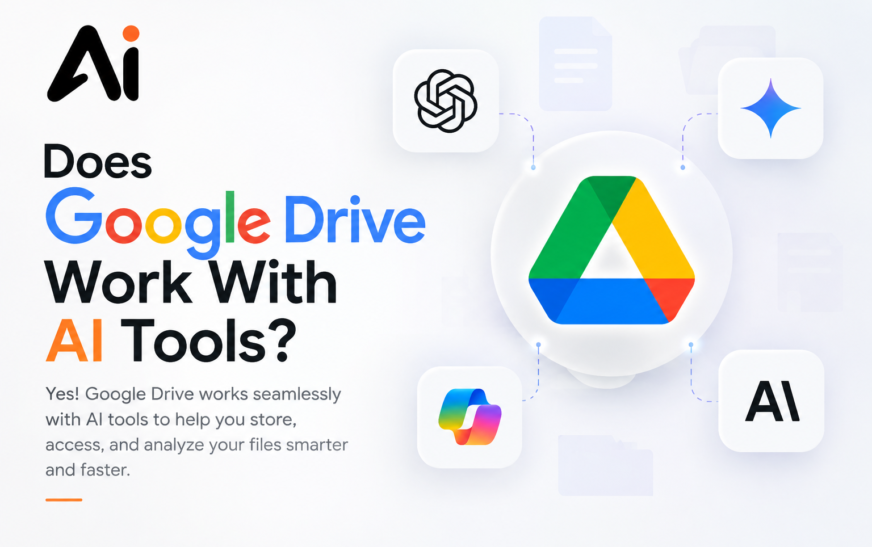
Yes, Google Drive can work with AI tools. Google provides built-in Gemini features for eligible Google Workspace and Google AI plans, while third-party services can connect to Drive through supported integrations, permissions, file uploads, or automation platforms. These connections can support AI document analysis, document summarization, natural-language search, file organization, and AI workflow automation. The exact experience depends on the AI tool, your Google account, the file type, and the permissions you grant. In other words, Google Drive is compatible with AI, but not every AI service can automatically access every file in your Drive.
Google Drive started primarily as a convenient place to store documents, spreadsheets, PDFs, images, and other files in the cloud. Now, it is increasingly becoming part of a broader cloud storage and AI workflow, where artificial intelligence can help users search, summarize, analyze, and organize information without manually opening every file. That raises an obvious question: Does Google Drive Work With An AI Tool? The short answer is yes, but there is more to the process than simply switching on an AI button. Google has built Gemini capabilities directly into Drive for eligible plans, while third-party AI applications can use supported connections and permissions to work with Drive content.
Key Takeaways
- Google Drive can work with built-in Google AI features and supported third-party AI tools.
- Gemini can summarize, search, analyze, and organize supported Drive content on eligible plans.
- Third-party AI tools need an appropriate connection or permission before accessing Drive data.
- AI can help with document summarization, file analysis, knowledge search, and repetitive workflows.
Always review Google Drive permissions before giving an AI application access to your files.
For students, freelancers, researchers, and businesses, this can make a real difference. Instead of spending an hour searching through folders for one fact, you may be able to ask an AI assistant a natural-language question and receive a summary or locate the relevant file. This guide explains Google Drive AI integration, AI productivity tools, file analysis, permissions, automation, and the practical ways you can use AI with Google Drive.
Can I Use Google Drive With AI Tools?
Yes, Google Drive works with AI tools through built-in AI features, Google account connections, file uploads, and automation platforms. However, the level of access depends on the AI tool, file type, account, and permissions.
Can AI Tools Access Google Drive?
Yes, supported AI tools can access Google Drive after you authorize the required permissions. The access may apply to specific files, folders, or synchronized Drive content, depending on the integration.
Google Drive AI Integration: How Does It Work?
Google Drive AI integration generally works through four methods: built-in AI features, official connectors, file uploads, and automation. Built-in tools work inside Google’s ecosystem, while connectors provide authorized access to Drive content.
File uploads let you choose exactly what to share, while automation platforms can trigger AI actions when files are added or updated in Google Drive.
How Google Drive Works With Google’s Built-In AI
Google Drive is more than cloud storage. Eligible users can use Gemini in Drive to search files, summarize content, conduct research, and organize information using natural-language prompts. Available features depend on the user’s Google Workspace or Google AI plan.
Gemini in Google Drive
Gemini lets users interact with multiple files without opening each one individually. For example, you can ask it to find key issues across project documents, summarize files, or compare information from related sources.
Gemini Across Google Workspace
Gemini works across supported Google Workspace apps such as Drive, Docs, Sheets, Slides, and Gmail. This makes it easier to connect information from different files and analyze related content in one place.
AI Overviews and File Summaries
AI Overviews make Drive search more conversational. Users can ask questions about their files and receive quick answers or summaries. However, AI summaries may not include every piece of information, so important details should always be checked in the original files.
Overall, Gemini makes Google Drive more useful for searching, summarizing, researching, and managing information.
How Google Drive Works With Third-Party AI Tools
Google’s built-in AI is not the only option. Third-party AI tools can connect with Google Drive through permissions, connectors, APIs, uploads, and automation platforms.
How AI Tools Connect to Google Drive
Most AI tools require your authorization before accessing Drive files. Users should review the requested permissions and only provide the access the tool actually needs.
Common AI Use Cases
Third-party tools can help with document summaries, research, data extraction, enterprise search, and automation. For example, an automation platform can trigger an AI workflow when a new file is added to Google Drive.
Why Permissions Matter
Always check what an AI tool can access before connecting it to Drive. Some tools may only read files, while others may download, synchronize, or modify information.
Overall, Google Drive and third-party AI tools can work together to make file management, research, and automation faster and more efficient.
Popular Third-Party AI Tools That Work With Google Drive
There isn’t one universal “best” AI tool for Google Drive. The right choice of Upload Data Into AI Tools depends on whether your goal is conversational analysis, enterprise search, knowledge management, or automation.
It is also important to distinguish between direct integrations and indirect workflows. Some services provide their own Drive connection, while others can interact with Drive through platforms such as Zapier or Make.
ChatGPT
ChatGPT can work with Google Drive through supported Google Drive app and sync functionality. OpenAI’s current documentation says supported Pro users and Business/Enterprise workspace administrators can configure Google Drive with sync, with users then connecting their Google account and authorizing access.
This can be useful when you want to ask questions about information stored in Drive rather than repeatedly uploading individual documents. The exact availability and access model depend on the ChatGPT account and workspace configuration.
Claude
Claude is designed for document analysis and can be useful when working with files through supported upload or integration workflows. However, users should distinguish between directly uploading a file and having continuous Google Drive access.
Before assuming Claude can browse an entire Drive, check the current integration options for your account and region. AI integrations change frequently, so the exact capabilities should always be confirmed before publishing instructions or setting up a business workflow.
Notion AI
Notion AI is primarily designed around information stored within the Notion environment. It can become part of a wider workflow where information moves between Google Drive and Notion through supported integrations or automation.
This can make sense for teams that use Drive as file storage but Notion as a central workspace for notes, projects, or knowledge. The key is to decide which platform should remain the source of truth.
Glean
Glean focuses on enterprise search and knowledge discovery. For organizations with information spread across multiple business systems, a platform like this can provide a centralized search experience rather than forcing employees to search every application separately.
This type of solution is more appropriate for larger teams than for someone who simply wants to summarize one PDF stored in personal Drive.
Guru
Guru focuses on organizational knowledge management. Its value comes from helping teams capture and retrieve information rather than simply acting as a general-purpose chatbot.
For companies, this can complement Google Drive by turning scattered documents and internal knowledge into information employees can find more easily.
Zapier
Zapier is especially useful when your goal is AI automation rather than simply chatting with a document. Its Google Drive integration can trigger workflows based on events such as new files, new folders, or file updates.
For example, a new document placed into a specific folder can trigger an AI step that generates a summary and sends the result to another application. This is a practical example of AI workflow automation.
Make
Make is another visual automation platform that can connect applications and build multi-step workflows. It can be useful when a process involves several actions instead of one simple trigger.
For example, a workflow could detect a new Drive file, send its content to an AI service, extract specific fields, and then store the result somewhere else. The exact modules and capabilities depend on the services being connected.
AI Tools for Google Drive
The best AI tools that work with Google Drive depend on the task. For document questions, a conversational AI service may be enough. For enterprise knowledge, a search platform may be more appropriate, while automation platforms are better for repetitive processes.
Think about the workflow first, not the brand name. Ask yourself whether you need analysis, search, organization, or automation.
Which Type of Tool Should You Use?
| Your Goal | Best Type of Tool | Typical Use |
| Analyze a document | Conversational AI | Summaries and questions |
| Search company knowledge | Enterprise AI search | Find information across systems |
| Manage knowledge | Knowledge platform | Centralize internal information |
| Automate files | Automation platform | Trigger actions from Drive |
| Process repeated documents | AI + automation | Extract and classify information |
The biggest mistake is choosing a tool simply because it is popular. The better approach is to match the tool to the actual job you want it to perform.
How Do I Connect Google Drive to an AI Tool?
Open the AI tool’s settings, select Google Drive, sign in, review permissions, and authorize access.
How to Connect Google Drive to ChatGPT
Connect Google Drive through ChatGPT’s supported app settings and authorize your Google account.
How to Connect Google Drive Files With AI Assistants
Select the files or folders you need and connect them through the AI assistant’s Drive integration, or upload files manually.
Is Google Drive Compatible With ChatGPT?
Yes, supported ChatGPT configurations can connect with Google Drive, depending on the account and available features.
What Can AI Tools Do With Google Drive Files?
AI can make Google Drive files easier to search, summarize, analyze, and organize. Users can ask questions, extract information, compare documents, and create new content from existing files.
Summarize and Search Files
AI can summarize supported Docs, Sheets, Slides, PDFs, videos, and images. It can also search files using natural-language questions instead of relying only on filenames.
Extract and Create Information
AI can identify important details such as deadlines, prices, names, and action items. It can also turn existing documents into summaries, reports, or meeting notes.
Organize Google Drive Files
AI can help classify related files, suggest categories, and automate repetitive organization tasks. Review suggestions before allowing automatic file changes.
Analyze and Upload Files
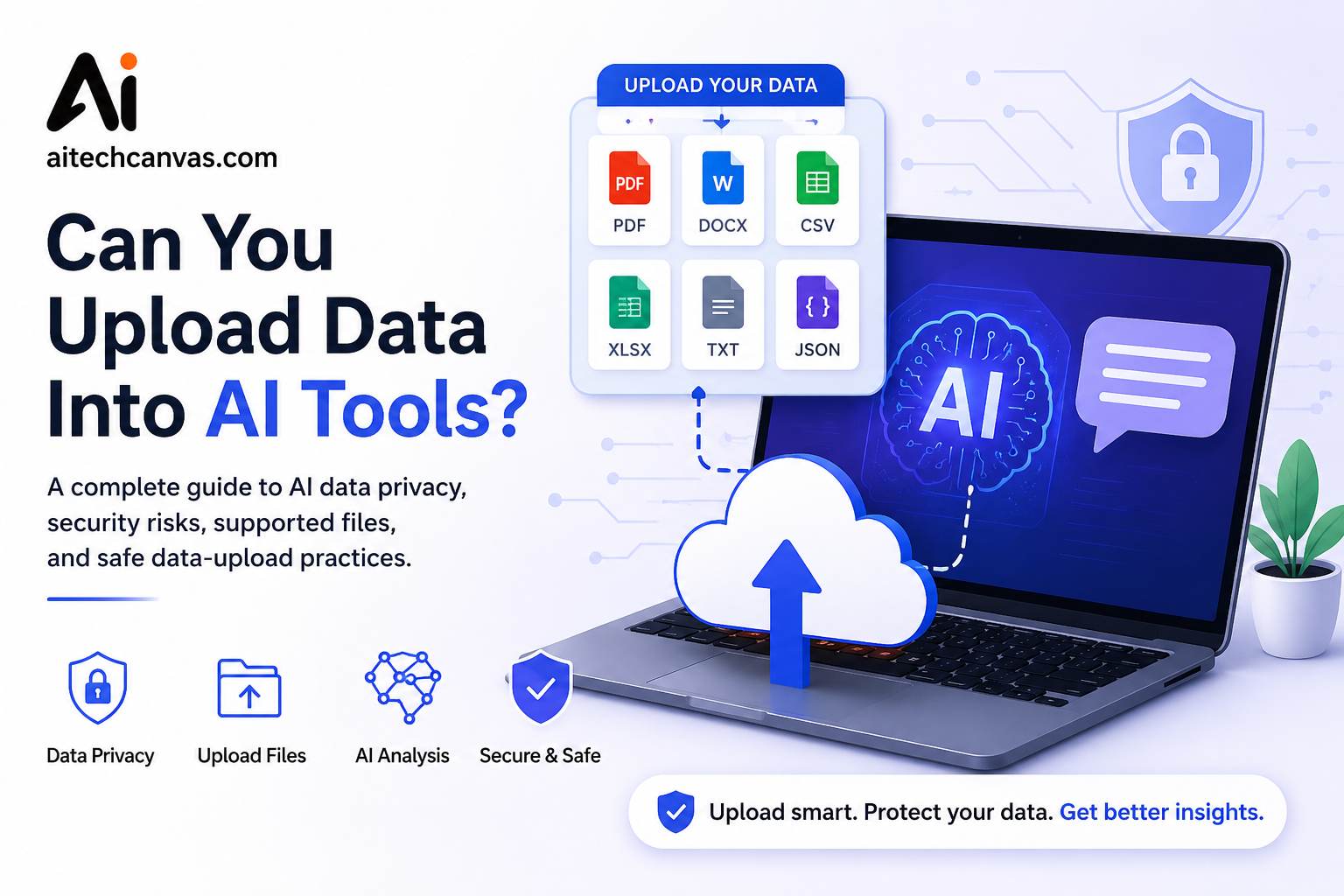
To analyze Drive files, connect a supported AI tool or upload individual documents. Uploading gives you more control over which files are shared.
Overall, AI can make Google Drive faster and easier to manage, but important information should always be verified against the original files.
What Types of Google Drive Files Can AI Tools Work With?
AI capabilities depend on the platform and the file type. A tool that handles text documents well may not provide the same quality of analysis for scanned images, audio, video, or complex spreadsheets.
Google’s current Gemini in Drive documentation lists supported summaries for Docs, Slides, Sheets, PDFs, videos, and images, while other experimental features may have narrower support.
Google Docs
Google Docs are among the easiest files for AI to analyze because their content is primarily structured text. AI can summarize documents, extract action items, compare content, and help create new drafts from existing information.
For students, this could mean summarizing lecture notes. For businesses, it could mean turning project documentation into a short executive summary.
Google Sheets
AI can help users understand spreadsheet information, identify trends, summarize tables, and answer questions about supported data. However, spreadsheet analysis requires more care than simple text summarization because formulas, cell relationships, and data quality matter.
Always verify calculations when the result affects financial or operational decisions. AI can explain data, but it shouldn’t replace proper spreadsheet validation.
PDFs
PDFs are commonly used for reports, research papers, contracts, manuals, and presentations. Supported AI tools can analyze text inside PDFs and generate summaries or answer questions.
Google currently documents Gemini features for working with PDFs in Drive, including summaries and questions about supported PDF content.
Images and Scanned Files
AI with vision or OCR capabilities can sometimes extract and understand information from images and scanned documents. This can be useful for receipts, diagrams, scanned notes, or older documents that don’t contain selectable text.
Accuracy can vary significantly depending on image quality, handwriting, layout, and language. Always inspect the original when exact numbers or wording matter.
Videos and Audio Files
AI can work with supported video and audio content through transcription, summaries, and related analysis features. Google currently documents Gemini in Drive capabilities for supported video files and Audio Overviews in eligible contexts.
This can be useful for meeting recordings, lectures, interviews, and presentations. The key is whether the specific AI service supports the file type and feature you need.
Is It Safe to Connect Google Drive to an AI Tool?
Review permissions: Check what the AI tool can view, download, or sync before clicking “Allow.”
Limit access: Give access only to the files or folders the AI actually needs.
Protect sensitive data: Be careful with contracts, financial records, customer data, and confidential business files.
Use admin controls: Businesses should approve AI tools, control access, and regularly review connected applications.
Choose trusted providers: Check the AI service’s privacy and security policies before connecting Google Drive.
Google Drive AI for Personal Accounts vs Business Accounts
The basic concept is similar for personal and business users, but the consequences of a mistake are very different. A personal Drive may contain photos and school documents, while a business Drive can contain confidential information belonging to an entire organization.
Google also makes some Gemini features dependent on eligible Google Workspace or Google AI plans, so users should check the current availability for their account.
Personal Google Accounts
Personal users can benefit from AI for tasks such as summarizing study materials, finding documents, analyzing PDFs, organizing information, or creating content from existing files.
For a personal user, a simple file upload may be enough. There’s often no reason to build a complex automation workflow unless the same task happens frequently.
Google Workspace Accounts
Google Workspace accounts can benefit from AI at a larger scale. Teams may use AI to analyze project documents, search internal information, summarize meetings, and connect documents with automated workflows.
Google’s current Gemini in Drive features support research and analysis across supported Workspace sources, including files, folders, and other Workspace information.
Why Businesses Should Be More Careful
Businesses need to think about privacy, permissions, retention, security, compliance, and employee access. A connection that is acceptable for a personal experiment may not be appropriate for a company handling confidential information.
The best approach is controlled adoption. Start with low-risk information, define approved tools, test workflows, and expand access only after the organization understands the consequences.
Best Ways to Use AI With Google Drive
Summarize large folders: Quickly review reports, meeting notes, spreadsheets, and presentations before meetings.
Create a searchable knowledge base: Use natural-language search to find information without remembering exact filenames or folder locations.
Automate document tasks: Let AI summarize, classify, extract information, or route new documents automatically.
Improve team productivity: Reduce time spent searching, reviewing repetitive reports, copying information, and creating routine summaries.
Start small: Choose one repetitive task and automate it first. Expand the workflow once it works reliably.
How to Automate Google Drive With AI
Google Drive AI automation connects file events with AI actions. For example, when a new report is uploaded, an automation can trigger AI to summarize it, extract key information, and send the results to a team or database.
Google Drive AI Automation
Workflows can be simple or advanced. A basic workflow may summarize a new document, while a larger one can extract data, classify files, update systems, and send notifications.
Automating Repetitive Tasks
AI automation is useful for repetitive tasks such as summarizing reports, extracting invoice details, classifying files, and creating document records.
Automation platforms such as Zapier can connect Google Drive with AI workflows. However, important financial, legal, or operational tasks should include human review to reduce the risk of AI errors.
Limitations of Using AI With Google Drive
AI may not read every file perfectly: Complex layouts, poor scans, handwriting, unusual formats, or unsupported files can cause errors.
AI can misinterpret information: AI may provide incomplete or incorrect answers, so verify important information against the original files.
Access depends on permissions: AI can only access the Drive files allowed by the connector, account settings, and permissions.
Privacy varies by AI tool: Different providers have different data-handling, security, and retention policies. Review these before connecting sensitive files.
Human review is important: For business, financial, legal, or research tasks, treat AI as an assistant rather than the final authority.
Conclusion
So, Does Google Drive Work With An AI Tool? Absolutely. The combination of Google Drive and AI can help users search documents with natural language, summarize large collections, extract useful information, analyze files, organize content, and automate repetitive workflows.
Google’s Gemini features make AI available directly inside Drive for eligible users, while third-party platforms can extend Drive into conversational AI, enterprise search, knowledge management, and automation.
The smartest approach is to start small. Choose one repetitive task, connect only the information you need, review the permissions, and verify the AI’s results. Once the workflow proves reliable, you can expand it into a larger AI-powered file management or AI workflow automation system.
If you’re using Google Drive every day, AI isn’t necessarily about replacing your existing storage system. It’s about making the information already stored there easier to find, understand, and use.
Frequently Asked Questions
Can I use Google Drive with AI tools?
Yes, Google Drive works with built-in AI, third-party AI tools, file uploads, and automation platforms.
Can ChatGPT access Google Drive?
Yes, supported ChatGPT accounts can connect to Google Drive through supported Drive integrations.
Can AI summarize Google Drive documents?
Yes, supported AI tools can summarize accessible Google Drive files.
How do I connect Google Drive to AI?
Connect your Google account through the AI tool’s integration settings and authorize the required permissions.
What AI tools work with Google Drive?
ChatGPT, Gemini, Claude, Glean, Guru, Zapier, and Make can support Google Drive workflows in different ways.
Is it safe to connect Google Drive to AI?
Yes, when you use a trusted tool, review permissions, and protect sensitive information.
Can AI organize Google Drive files?
Yes, supported AI tools can classify, organize, and automate file-management tasks.
How can I automate Google Drive with AI?
Use an AI service or automation platform to trigger actions such as summarizing, extracting, or classifying new files.