
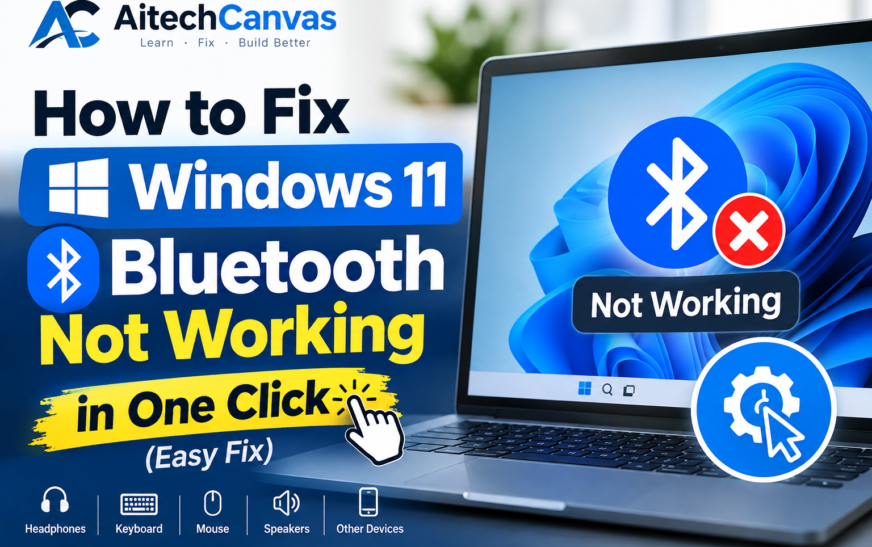
Is your Bluetooth not working on Windows 11? If your PC cannot find Bluetooth devices, your Bluetooth toggle is missing, or your headphones won’t connect, several simple solutions can help you fix the problem.
Windows 11 Bluetooth problems can happen because of outdated drivers, disabled Bluetooth services, incorrect settings, temporary system glitches, or Windows updates. Fortunately, you usually don’t need to reinstall Windows to solve these issues.
In this guide, you’ll learn how to fix Windows 11 Bluetooth not working using 10 practical troubleshooting methods, including how to update Bluetooth drivers, restart Bluetooth services, and fix missing Bluetooth options.
Why Is Bluetooth Not Working on Windows 11?
Before trying the fixes, it’s helpful to understand why Bluetooth might stop working on your computer.
Common causes include:
- Bluetooth is turned off in Windows settings.
- Airplane mode is enabled.
- Your Bluetooth driver is outdated or corrupted.
- The Bluetooth Support Service is not running.
- Your PC cannot detect nearby Bluetooth devices.
- Your headphones or other devices are not in pairing mode.
- A recent Windows update has caused a compatibility problem.
- Your computer does not have a working Bluetooth adapter.
Identifying the cause can help you choose the right solution without wasting time. If you also notice display issues while troubleshooting your computer, read our guide on shadow on computer monitor to learn about possible causes and solutions.
1. Turn Bluetooth Off and On
One of the easiest ways to fix Bluetooth not working on Windows 11 is to turn Bluetooth off and then turn it back on. This can resolve temporary connection problems.
Follow these steps:
- Press Windows + I to open Settings.
- Select Bluetooth & devices.
- Find the Bluetooth toggle.
- Turn Bluetooth off.
- Wait approximately 10 seconds.
- Turn Bluetooth back on.
- Try connecting your device again.
If Bluetooth is missing from Settings, move to the driver and adapter troubleshooting steps below.
2. Turn Off Airplane Mode
Airplane mode can disable wireless connections and may prevent Bluetooth devices from connecting.
To check it:
- Press Windows + A to open Quick Settings.
- Find the Airplane mode button.
- Turn Airplane mode off if it is enabled.
- Check whether Bluetooth is turned on.
- Try pairing your device again.
If Airplane mode was already off, continue to the next fix.
3. Restart Your PC and Bluetooth Device
Sometimes, Windows 11 Bluetooth problems are caused by temporary software glitches. Restarting your computer may help restore normal functionality. If you experience other software-related issues, check out our guide on Software GDTJ45 Builder Problems for additional troubleshooting insights. Restarting your computer and Bluetooth device can help restore the connection.
Here’s what to do:
- Save your work and restart your PC.
- Turn off your Bluetooth headphones, mouse, keyboard, or other device.
- Wait a few seconds.
- Turn the device back on.
- Make sure it has enough battery power.
- Put the device into pairing mode.
- Try connecting it through Windows Bluetooth settings.
If the device is already paired but won’t connect, remove it from the saved devices list and pair it again.
4. Run the Windows 11 Bluetooth Troubleshooter
Windows includes troubleshooting tools that can identify certain Bluetooth problems and recommend or apply fixes.
Follow these steps:
- Open Settings using Windows + I.
- Select System.
- Click Troubleshoot.
- Select Other troubleshooters.
- Find Bluetooth and click Run, if available.
- Follow the instructions on your screen.
Depending on your Windows 11 version, the Bluetooth troubleshooter may open the Get Help app rather than the older troubleshooting interface.
After completing the process, test your Bluetooth connection again.
5. Update Your Bluetooth Driver
An outdated, incompatible, or corrupted Bluetooth driver can cause connection errors, missing Bluetooth options, and detection problems.
Updating the driver may help restore normal functionality.
How to update the Bluetooth driver:
- Right-click the Start button.
- Open Device Manager.
- Expand the Bluetooth category.
- Right-click your Bluetooth adapter.
- Select Update driver.
- Choose Search automatically for drivers.
- Follow any available instructions.
If Windows cannot find a newer driver, visit your computer manufacturer’s official support website. Download a compatible driver for your exact PC model and Windows 11 version.
If the Bluetooth category is missing, select View > Show hidden devices in Device Manager and check Other devices for an unknown device. A missing category may indicate a disabled adapter, a driver problem, or hardware that Windows cannot detect.
6. Restart Bluetooth Support Service
Windows services help manage different system functions, including Bluetooth connections. If the Bluetooth Support Service is stopped or experiencing a problem, restarting it may help.
Follow these steps:
- Press Windows + R.
- Type services.msc.
- Press Enter.
- Find Bluetooth Support Service.
- Right-click the service.
- Select Restart, if available.
If the service is stopped, open its Properties and check whether you can start it. You can also check the Startup type, but avoid changing service settings unnecessarily.
After restarting the service, return to Bluetooth settings and try connecting your device.
7. Fix the Missing Bluetooth Icon or Toggle
If Bluetooth is not showing in Windows 11, you may be dealing with a driver issue, a disabled adapter, or a hardware detection problem.
Try these steps:
- Open Device Manager.
- Expand the Bluetooth category, if it appears.
- Right-click your Bluetooth adapter.
- Select Enable device if that option is available.
- If the adapter is enabled, select Update driver.
- Restart your PC.
If the Bluetooth adapter still does not appear, check Device Manager under View > Show hidden devices and look under Other devices.
Also check your computer manufacturer’s website for Bluetooth drivers. If your PC uses a USB Bluetooth adapter, disconnect it and reconnect it to another USB port.
Important: If your computer does not have Bluetooth hardware, installing a driver alone will not add Bluetooth capability. A compatible USB Bluetooth adapter may be required.
8. Reinstall the Bluetooth Driver
If updating the driver does not solve the problem, reinstalling it may help. This can be useful when Bluetooth stopped working after a driver change or system update. This can be useful when Bluetooth stops working after a driver change or system update. Keeping your drivers updated and understanding what system administration software does can help you better manage your computer and troubleshoot technical issues.
Steps to reinstall the driver:
- Open Device Manager.
- Expand Bluetooth.
- Right-click your Bluetooth adapter.
- Select Uninstall device.
- Confirm the action if prompted.
- Restart your computer.
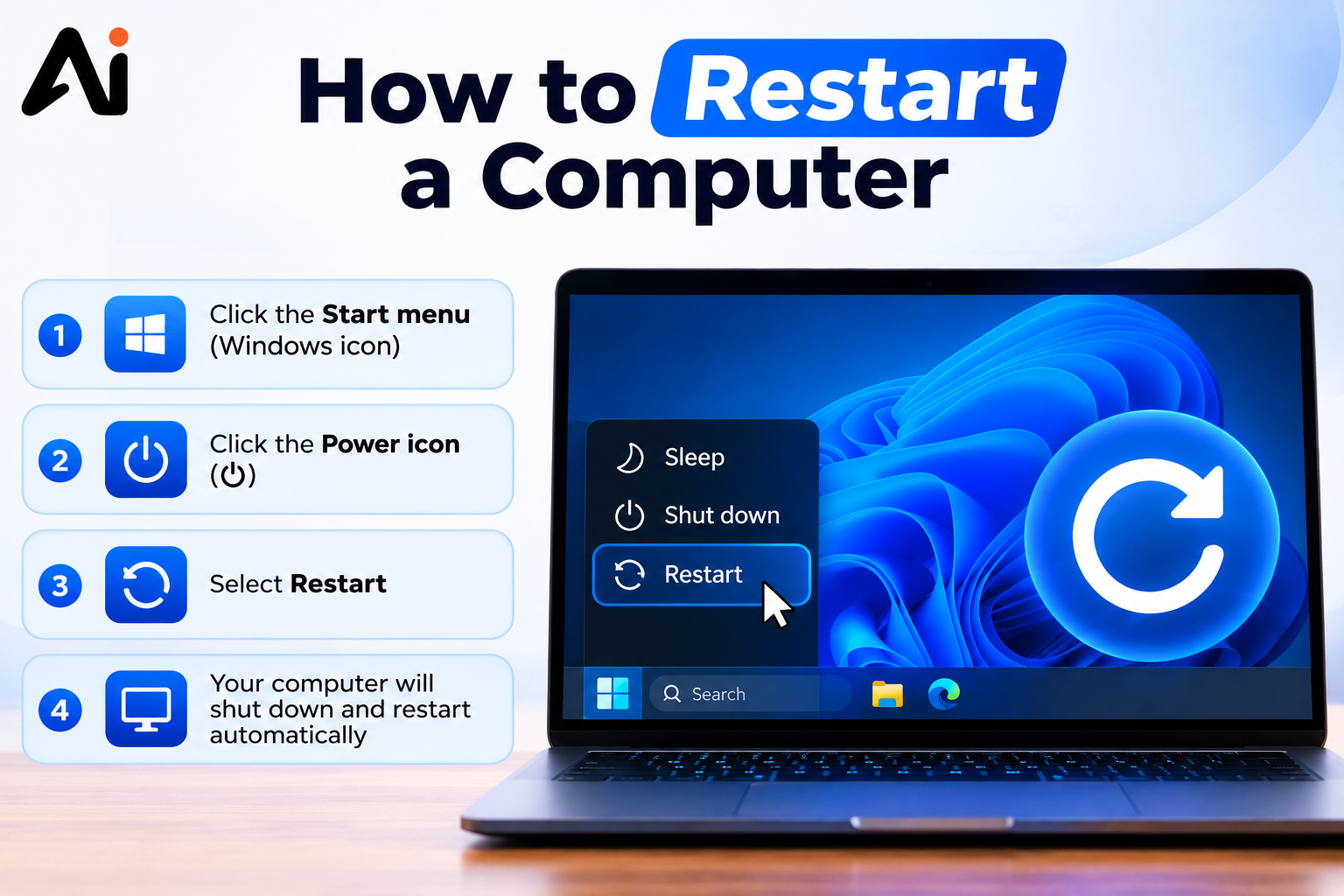
Windows may automatically reinstall the driver after restarting your PC. If you need help with this step, follow our guide on how to restart a computer for simple instructions. If it does not, download the correct driver from your PC manufacturer’s official website.
Before uninstalling the driver, make sure you know where to obtain a replacement if Windows cannot reinstall it automatically.
9. Install the Latest Windows 11 Updates
Windows updates can include compatibility improvements, bug fixes, and driver updates that may help resolve Bluetooth problems.
To check for updates:
- Open Settings.
- Select Windows Update.
- Click Check for updates.
- Install available updates.
- Restart your PC if required.
- Test Bluetooth again.
You can also check Advanced options > Optional updates for available driver updates. Only install drivers that match your hardware.
If Bluetooth stopped working immediately after a particular update, check your PC manufacturer’s support information before attempting to remove the update. Uninstalling updates should generally be a later troubleshooting step.
10. Remove and Pair Your Bluetooth Device Again
If Bluetooth is enabled but your headphones, speakers, keyboard, or mouse will not connect, removing and pairing the device again may solve the problem.
Follow these steps:
- Open Settings.
- Select Bluetooth & devices.
- Find your device in the list.
- Click the three-dot menu next to it, if available.
- Select Remove device.
- Put your Bluetooth device into pairing mode.
- Select Add device.
- Choose Bluetooth.
- Select your device when it appears.
Follow any pairing instructions shown on your screen.
If Windows cannot find the device, move it closer to your PC, make sure it is discoverable, and disconnect it from another computer or phone if necessary.
How to Fix Windows 11 Bluetooth Not Detecting Devices
If your PC cannot find nearby Bluetooth devices, try the following checks:
- Make sure Bluetooth is enabled on your PC.
- Confirm that the device is in pairing mode.
- Move the device closer to your computer.
- Check the device’s battery level.
- Disconnect the device from other computers or phones if it is already connected.
- Restart both devices.
- Update the Bluetooth driver.
- Check whether your Bluetooth adapter appears in Device Manager.
Some devices only remain discoverable for a short period. Start the pairing process immediately after activating pairing mode.
If no Bluetooth devices appear, even when several different devices are nearby, the problem may be related to your PC’s Bluetooth adapter or driver.
How to Fix Bluetooth Headphones Not Connecting to Windows 11
Bluetooth headphones may fail to connect because they are already connected to another device, have low battery power, or have a pairing problem.
Try this process:
- Charge your headphones.
- Disconnect them from your phone or another computer.
- Put them into pairing mode.
- Open Windows Bluetooth settings.
- Remove the headphones if they are already listed but will not connect.
- Pair them again.
- Check Windows sound settings and select the headphones as the output device.
If the headphones connect but you cannot hear sound, the issue may be with audio output settings rather than Bluetooth itself.
Frequently Asked Questions
Why Is My Bluetooth Suddenly Not Working in Windows 11?
Bluetooth may stop working because of a temporary system glitch, a disabled adapter, an outdated driver, or a recent Windows update. Restart your computer, check Bluetooth settings, and update the driver if necessary.
How Do I Force Bluetooth On in Windows 11?
Open Settings, select Bluetooth & devices, and turn on Bluetooth. If the toggle is missing or cannot be enabled, check Airplane mode, Device Manager, and the Bluetooth driver. Bluetooth cannot be forced on if the adapter is unavailable or has a hardware problem.
Why Is My PC Not Detecting Bluetooth Devices?
Your PC may not detect devices if they are not in pairing mode, are out of range, or are connected to another device. If no devices appear, check your Bluetooth adapter and driver in Device Manager.
How Do I Reset Bluetooth on Windows 11?
Windows 11 does not provide one universal button that resets every Bluetooth component. You can turn Bluetooth off and on, restart Bluetooth Support Service, remove and re-pair your device, and restart your PC.
Can a Windows Update Cause Bluetooth Problems?
Yes. Some updates or driver changes can introduce compatibility problems. Check for newer compatible drivers from your PC manufacturer and review Windows Update history if the issue began immediately after an update.
Why Is the Bluetooth Toggle Missing in Windows 11?
The toggle may disappear if Windows cannot detect the Bluetooth adapter, its driver is missing or damaged, or the adapter is disabled. Check Device Manager, install the correct driver, and verify that your PC supports Bluetooth.
Final Thoughts
Bluetooth not working on Windows 11 can be frustrating, especially when your headphones, keyboard, mouse, or other wireless devices suddenly stop connecting. Fortunately, many problems can be resolved by checking Bluetooth settings, turning off Airplane mode, restarting your PC, updating drivers, or pairing the device again.
Start with the simplest fixes before reinstalling drivers or changing system settings. If Bluetooth is still unavailable after these steps, check your computer manufacturer’s support page or investigate whether the Bluetooth adapter has a hardware problem.
Which fix worked for you? If Bluetooth is still not working, check whether the Bluetooth toggle is missing, your PC cannot detect devices, or a specific device will not connect. Identifying the exact symptom can help you find the right solution faster.