
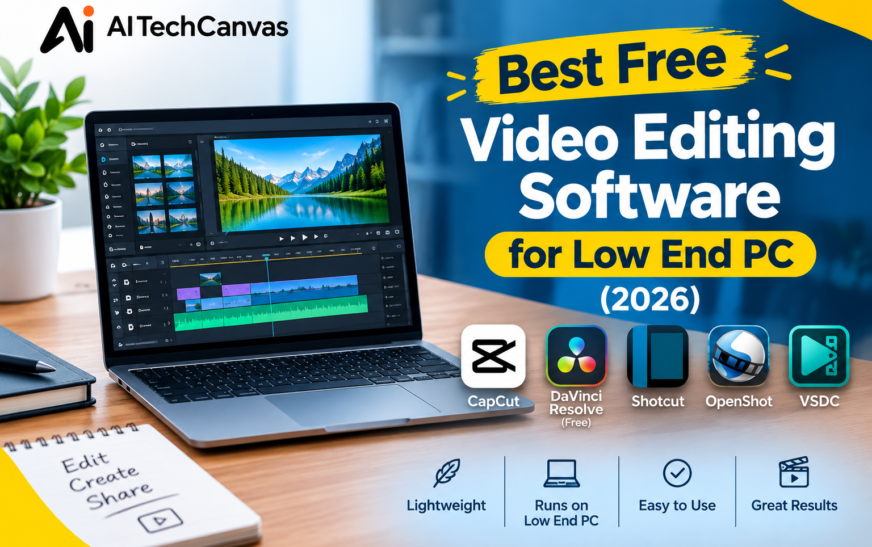
Still using an old laptop with just 2GB or 4GB RAM? You don’t need an expensive PC or powerful graphics card to edit videos! The best free video editing software for a low-end PC can help you create YouTube videos, trim clips, add transitions, and export projects without spending money on premium tools.
VSDC Free Video Editor, Shotcut, Avidemux, and LosslessCut are worth considering, depending on your editing needs. OpenShot and Kdenlive also offer useful editing features for different skill levels.
In this guide, we’ll compare each video editor’s key features, system requirements, watermark policy, ease of use, and suitability for 2GB or 4GB RAM PCs. You’ll also learn which tools are best for simple trimming, beginner-friendly editing, and more advanced timeline projects, helping you choose the right software for your computer and editing needs.
Key Takeaways
- VSDC Free Video Editor: A Windows-focused option for general video editing.
- Avidemux: Useful for cutting, filtering, and encoding video files.
- LosslessCut: Ideal for quickly trimming compatible videos without re-encoding.
- Shotcut: A versatile editor with timeline editing, filters, and export options.
- OpenShot: A beginner-friendly option for basic editing and transitions.
- Kdenlive: A more advanced editor that may require additional resources for complex projects.
- Low-RAM editing: Lower preview quality, close background applications, and keep projects simple.
- No dedicated GPU: Choose software compatible with your integrated graphics and avoid demanding effects.
What Is the Best Free Video Editing Software for a Low-End PC?
The best free video editing software is not necessarily the program with the most features. On an older computer, performance, compatibility, and ease of use matter more than advanced effects you may never need.
Before downloading software, consider your RAM, processor, available storage, Windows version, and the resolution of your footage.
Best Free Video Editing Software for PC: A Detailed Comparison
| No. | Video Editing Software | Best For | Key Features | Main Limitation | Ideal User |
|---|---|---|---|---|---|
| 1 | VSDC Free Video Editor | General Windows video editing | Effects, transitions, color correction, and audio tools | Windows-focused software with a learning curve | Windows users |
| 2 | Avidemux | Basic video processing | Cutting, filtering, encoding, and format conversion | Limited advanced timeline features | Beginners and casual editors |
| 3 | LosslessCut | Quick video trimming | Fast cutting, splitting, and lossless trimming | Not designed for complex video production | Users who need quick edits |
| 4 | Shotcut | Flexible timeline editing | Multitrack timeline, filters, transitions, and audio editing | Advanced projects may require more system resources | Beginners and intermediate editors |
| 5 | OpenShot | Simple video creation | Drag-and-drop editing, titles, animations, and transitions | Performance can vary with complex projects | New video editors |
| 6 | Kdenlive | Advanced video editing | Multitrack editing, keyframes, effects, and color correction | The interface may take time to learn | Intermediate and advanced users |
| 7 | DaVinci Resolve | Professional-quality editing | Color grading, visual effects, audio post-production, and editing | Demanding hardware requirements for many workflows | Content creators and professionals |
| 8 | Blender | Video editing and animation | Video sequencing, 3D animation, compositing, and visual effects | More complex than a typical beginner editor | Animators and advanced creators |
| 9 | Microsoft Clipchamp | Quick everyday video editing | Templates, text overlays, transitions, and basic audio tools | Some features and assets require a paid plan | Beginners and social media creators |
Key Factors to Consider Before Choosing
- Ease of use: OpenShot and Clipchamp are good starting points for beginners.
- Editing flexibility: Shotcut and Kdenlive offer more control over timeline editing.
- Fast trimming: LosslessCut is suitable for cutting footage without unnecessary re-encoding when the source and cut points permit it.
- Professional tools: DaVinci Resolve provides advanced editing and color-grading capabilities in its free version.
- System performance: Available RAM, processor power, graphics hardware, and video resolution all affect editing performance.
The best free video editor depends on your computer’s specifications and editing needs. For a general-purpose PC editor, consider Shotcut or VSDC; for simple edits, try OpenShot or Clipchamp; and for advanced projects, consider Kdenlive or DaVinci Resolve. Check each program’s official website for current system requirements and free-version limitations.
These tools are worth comparing when looking for the best free video editing software for PC users on older hardware. Their performance will depend on the exact software version and computer specifications.
The best free video editor for a low-end PC depends on your computer’s specs and the type of videos you want to create. Avidemux and LosslessCut are practical choices for basic cutting, trimming, and splitting, while Shotcut and VSDC Free Video Editor offer more complete editing tools, including timelines, filters, transitions, and audio adjustments. OpenShot is suitable for beginners, while Kdenlive is worth considering for projects that require more advanced editing features.
Before choosing a lightweight video editor for Windows, check your RAM, processor, operating system, and graphics capabilities. A computer with 2GB RAM may struggle with full timeline editing, while a system with 4GB or 8GB RAM may handle simple projects more comfortably. Always check the software’s system requirements and test a short project before committing to a full editing workflow.
Minimum System Requirements for Free Video Editors
Before installing video editing software, check whether your computer meets the application’s minimum system requirements. RAM, processor architecture, operating system compatibility, and graphics support can all affect performance. Before choosing a lightweight video editor, make sure your PC has enough storage and memory to handle basic editing tasks. If you need to capture screenshots for tutorials or editing projects, follow our guide on how to screenshot on Windows.
| No. | Video Editor | Operating System | RAM Considerations | Best Use | Free | Open Source | Ease of Use | Timeline Editing |
|---|---|---|---|---|---|---|---|---|
| 1 | VSDC Free Video Editor | Windows | Depends on version | General video editing | Yes | No | Easy | Yes |
| 2 | Avidemux | Windows, macOS, Linux | Depends on version | Cutting and encoding | Yes | Yes | Easy | No |
| 3 | LosslessCut | Windows, macOS, Linux | Depends on version | Fast trimming and splitting | Yes | Yes | Easy | No |
| 4 | Shotcut | Windows, macOS, Linux | Depends on footage resolution | Timeline editing and filters | Yes | Yes | Moderate | Yes |
| 5 | OpenShot | Windows, macOS, Linux | At least 4 GB recommended | Beginner-friendly editing | Yes | Yes | Easy | Yes |
| 6 | Kdenlive | Windows, macOS, Linux | Depends on footage resolution | Advanced timeline editing | Yes | Yes | Moderate | Yes |
| 7 | DaVinci Resolve | Windows, macOS, Linux | Higher RAM may be needed | Professional editing and color grading | Free version | No | Advanced | Yes |
| 8 | Blender | Windows, macOS, Linux | Depends on project complexity | Video editing and animation | Yes | Yes | Advanced | Yes |
| 9 | iMovie | macOS, iOS | Depends on device | Basic editing and transitions | Yes | No | Easy | Yes |
Official resources:
- VSDC Free Video Editor
- Avidemux downloads
- LosslessCut documentation
- Shotcut system requirements
- OpenShot system requirements
- Kdenlive installation documentation
Minimum requirements do not guarantee smooth performance. Your processor, video format, storage drive, and project complexity also influence how well an editor runs.
Best Video Editor for Different PC Specifications
The best video editor for a low-end PC depends on more than the amount of installed RAM. Your processor, integrated graphics, operating system, and storage drive all affect editing performance.
| PC specifications | Editors worth considering | Suitable projects |
| 2GB RAM | Avidemux or LosslessCut, if compatible | Basic cutting and trimming |
| 4GB RAM | VSDC or Shotcut, if compatible | Simple projects with limited effects |
| 8GB RAM | Shotcut, VSDC, OpenShot, or Kdenlive | Everyday timeline editing, depending on the project |
| Integrated graphics | A compatible editor with modest preview settings | Basic editing without a dedicated GPU |
| Older processor | Avidemux or LosslessCut | Simple operations on compatible files |
| SSD and a capable multicore processor | Shotcut, VSDC, or Kdenlive | More demanding editing workflows, depending on the footage |
Video Editor for a 2GB RAM PC
A computer with 2GB RAM has very limited resources for modern video editing. Avidemux or LosslessCut may be more practical if you only need to cut, trim, or split compatible files. Full timeline editing, high-resolution footage, and multiple effects may cause significant slowdowns.
Video Editor for a 4GB RAM Laptop
A 4GB RAM laptop may handle simple editing projects, but performance depends on the operating system, processor, and video format. Shotcut or VSDC may be worth testing on a compatible system. Close unnecessary applications, lower preview quality, and keep the timeline simple.
Video Editor for an 8GB RAM PC
With 8GB RAM, you have more flexibility for everyday editing, including short YouTube videos, tutorials, and projects with a few tracks. Shotcut, VSDC, OpenShot, and Kdenlive are options to consider, although complex effects and high-resolution footage may still require more powerful hardware.
Best Settings for Editing Videos on a Slow PC
Even a lightweight video editor can lag when processing high-resolution footage or complex effects. Adjusting a few settings can make editing more manageable without necessarily reducing the quality of your final video.
Lower the Preview Resolution
Reduce the preview resolution or playback quality if your video stutters during editing. This reduces the workload during playback and does not automatically lower the resolution of the exported video.
Use Proxy Files for High-Resolution Footage
Proxy editing creates lower-resolution working copies of your original footage. When your editor supports this feature, proxies can improve playback responsiveness while you arrange clips and apply edits. Follow the software’s instructions to ensure the original media is used for final rendering when appropriate.
Close Unnecessary Applications
Close browser tabs, games, and other programs that consume memory and processing power. This is particularly important on computers with limited RAM.
Reduce Effects and Timeline Complexity
Limit unnecessary filters, transitions, animated titles, and overlapping tracks. If you are editing a long recording, consider splitting it into smaller sections and saving your work regularly.
Choose Suitable Recording Settings
If you record your own footage, select a resolution and frame rate your computer can handle. Make a short test recording first to check for dropped frames, audio issues, and excessive file sizes.
Keep Enough Storage Space Available
Video projects can generate large cache files, temporary data, and exports. Maintain sufficient free storage space, and consider an SSD if your computer uses a slow hard drive and supports an upgrade.
These adjustments can improve responsiveness, but they cannot eliminate every hardware limitation. Always check which performance features your particular software version supports.
Which Video Editor Is Best for Different Tasks?
The best free video editing software for YouTube or other projects depends on what you want to create. A tool designed for quick trimming may be ideal for preparing clips but unsuitable for projects that require multiple tracks, transitions, and detailed audio editing.
| Editing task | Editors worth considering | Why |
| Basic trimming and splitting | Avidemux or LosslessCut | Focus on straightforward video operations |
| YouTube tutorials | Shotcut or VSDC | Offer broader timeline and audio tools |
| Gaming highlights | LosslessCut for simple cuts; Shotcut or Kdenlive for complex projects | Suit different levels of editing complexity |
| Screen recordings | Shotcut, VSDC, or another compatible timeline editor | Useful for combining footage, audio, and titles |
| Social media videos | VSDC, Shotcut, or OpenShot | Provide tools for assembling and editing clips |
| Beginner projects | OpenShot or VSDC | Options for learning basic editing |
| Advanced timeline editing | Kdenlive or Shotcut | Provide greater control over tracks and effects |
| Fast splitting of long recordings | LosslessCut | Designed for quick cutting and splitting of compatible media |
For gaming videos, consider support for high-frame-rate recordings and multiple audio tracks. For YouTube tutorials, prioritize reliable trimming, readable titles, and audio controls.
If you only need to remove unwanted sections from a recording, a dedicated cutting tool may be simpler than installing a full editing suite. For projects with multiple clips, transitions, and background music, a timeline editor is usually more appropriate.
Before choosing any software, test it with a short sample of your own footage. This helps you compare playback smoothness, export time, and compatibility with your computer.
How to Choose the Best Free Video Editor for Windows
Look for a lightweight video editor that supports your operating system, common video formats, and desired export resolution. A program with a simple interface may be easier to use than professional software with demanding effects and complicated settings.
If you only need to cut clips, you may not need a full timeline editor. However, if you plan to create YouTube videos with titles, background music, transitions, and multiple clips, choose software that supports those features.
Best Lightweight Video Editing Software for Low End PC
A lightweight video editing software option can be especially useful when your computer has limited RAM or an older processor. The right lightweight video editor for Windows should let you complete basic tasks without unnecessary complexity.
When comparing a low resource video editor, consider how much memory it uses during your actual project rather than relying only on its installation size. A video editor that uses less RAM may still struggle with high-resolution footage or demanding effects.
VSDC Free Video Editor for Low End PC
VSDC Free Video Editor is worth testing if you need a Windows-based editor for everyday projects. It offers tools for cutting clips, adding transitions, applying effects, and arranging video elements.
Users searching for the best free PC video editing software may appreciate having several editing functions in one application. However, performance depends on the footage and project complexity. Start with a short project before editing a long video.
Avidemux for Fast and Simple Video Editing
Avidemux is a practical option when you mainly need to cut, filter, or encode video files. Its workflow is simpler than that of many full timeline editors, making it useful for basic editing tasks.
If you want a best free video editing program for PC that focuses on straightforward operations rather than advanced creative tools, Avidemux is worth considering. Remember that its limited timeline capabilities make it less suitable for projects involving many layers, transitions, and detailed audio arrangements.
LosslessCut Video Editor for Older Computers
LosslessCut is designed for fast trimming and splitting of compatible media files. Its lossless workflow can avoid re-encoding when the selected cuts and file format support it, helping preserve the original quality and reduce processing time.
It is useful for removing unwanted sections from recordings, preparing clips for YouTube, and splitting long videos into smaller files. However, it is not intended to replace a complete editing application.
Shotcut for Low End PC
Shotcut is a versatile option for users who need timeline editing, filters, audio adjustments, and export controls. It can handle a range of everyday editing tasks, although demanding effects may slow down an older computer.
Reduce the preview resolution, avoid unnecessary filters, and keep the timeline manageable. These adjustments can make Shotcut more practical when searching for the best and free video editing software for PC with limited resources.
OpenShot for Low-End Laptops
OpenShot offers a beginner-friendly interface with timeline editing, titles, transitions, and multiple tracks. It can be suitable for school projects, simple tutorials, and basic social media videos.
However, performance can vary with video resolution, effects, and the number of tracks. Test a short project before committing to a large editing task.
Is Kdenlive Good for Low End PC?
Kdenlive offers more advanced timeline features, effects, and editing controls. It may be useful if you want greater creative flexibility, but complex projects can place additional demands on your hardware.
Proxy files can help improve editing responsiveness when supported by your workflow. Check compatibility and system requirements before choosing Kdenlive for an older computer.
Best Video Editor for PC With 2GB RAM, 4GB RAM, or 8GB RAM
The amount of available memory plays an important role in video editing. A video editor for 2GB RAM PC users need should be selected carefully because modern Windows applications can be difficult to run comfortably with such limited memory.
For a computer with 2GB RAM, start with simple tools such as Avidemux or LosslessCut, provided the operating system supports the software version. Basic trimming is more realistic than complex timeline editing.
A video editor for 4GB RAM PC users can try may support simple 720p projects and carefully managed 1080p editing. Close unnecessary applications and limit effects to reduce memory pressure.
With 8GB RAM, users may have more flexibility for everyday timeline editing and multitasking. However, RAM alone does not determine performance. The CPU, integrated graphics, footage codec, and storage drive also matter.
If you need free video editing software for low RAM PC, avoid assuming that every program advertised as lightweight will run smoothly on your system. Check minimum requirements and test a short clip first.
Free Video Editing Software for Low End PC Without Graphics Card
You can edit videos without a dedicated graphics card, particularly when working with simple cuts and basic effects. Many computers use integrated graphics built into the processor, although the available capabilities vary by model.
When selecting video editing software for low end PC without graphics card, look for compatibility with your integrated graphics and avoid unnecessary GPU-intensive effects.
Best Video Editor for Intel HD Graphics and Intel UHD Graphics
Intel HD Graphics is found in many older computers, while Intel UHD Graphics appears in various processor generations. Both can support some everyday video-editing tasks, but performance varies considerably.
For a PC with integrated graphics, begin with basic editing, lower preview quality, and moderate export settings. A compatible editor may work well for short projects but struggle with high-resolution footage and complex effects.
Can You Edit Videos on a PC Without a Dedicated GPU?
Yes. A dedicated graphics card is not essential for every editing task. Your CPU can process many operations, and some systems support hardware acceleration through integrated graphics.
However, exporting may take longer when suitable hardware acceleration is unavailable. For a video editing software without GPU setup, keep projects simple and check the editor’s supported acceleration options.
Best Free Video Editor for Low End PC Without Watermark
Many users want a free video editor without watermark so they can publish videos without unwanted branding. Shotcut, OpenShot, Avidemux, and Kdenlive are free options worth considering, while VSDC also offers a free edition.
Before installation, check the current version’s licensing terms, export restrictions, and supported formats. A program may offer free editing but restrict particular features or workflows.
Best Free Video Editing Software for YouTube
For free video editing software for YouTube, look for trimming, title creation, audio controls, transitions, and common export formats. Beginners can create useful videos without relying on advanced effects.
Choose the export resolution and frame rate according to your source footage and publishing needs. If your computer struggles during playback, lower the preview quality instead of immediately reducing the final video resolution.
Best Free Video Editor for Windows 10 and Windows 11
The best Windows video editing software for an older computer is one that supports the installed operating system and hardware. Do not assume that a new software release will run on every older Windows PC.
Check the official requirements before downloading. If the latest version is incompatible, look for a supported alternative rather than installing an untrusted copy of an older release.
Open-Source Video Editing Software for Low-End PCs
Shotcut, OpenShot, Kdenlive, and Avidemux are open-source options with different strengths. Shotcut and Kdenlive provide broader editing workflows, OpenShot focuses on accessible timeline editing, and Avidemux is more suitable for straightforward operations.
Compare the interface and features with your actual needs before choosing the best free software for video editing on your computer.
How to Edit Videos on a Low End PC Without Lag
Even the best free video editing software for low end PC hardware can lag if the footage is demanding or too many applications are running. A few adjustments can improve the editing experience.
Lower the Preview Resolution
If playback stutters, reduce the preview resolution or quality in the editor. This lowers the workload during editing and does not necessarily reduce the final export resolution.
Use Proxy Files for Large Projects
Proxy files are lower-resolution working copies that can make editing high-resolution footage smoother. Use them when your editor supports the feature and your project contains demanding media.
Close Unnecessary Background Applications
Close browsers, games, and other applications you do not need. This frees system memory and processor capacity for your editing software.
Edit Short Clips and Reduce Effects
Break long projects into smaller sections when practical. Limit unnecessary transitions, filters, and animated effects, especially when your PC has an older processor.
Keep Enough Free Storage Space
Video projects can create large temporary files and cache data. Keep adequate free space on your drive and use a faster drive when available to improve file access.
How to Edit 1080p Videos on a Low End PC
Editing 1080p footage on a modest computer is possible in some cases, but performance depends on the CPU, RAM, graphics, codec, and frame rate.
If playback is slow, try lower-resolution previews, proxy files, and shorter timelines. Avoid stacking several demanding effects on the same clip.
Which Video Format Is Easier to Edit on an Older PC?
Highly compressed video can require considerable processing to decode, while less compressed or editing-friendly formats may require more storage. The best choice depends on your software and hardware.
If conversion is necessary, test a short clip first and consider the extra time and disk space involved.
How to Export 1080p Videos Without Overloading Your Computer
Choose an appropriate encoding preset, avoid unnecessary effects, and allow sufficient time for rendering. Do not run multiple resource-heavy applications during export.
Best Video Editing Software for Old Windows PC
When looking for the best free video editing software for slow computers, check operating system support before considering features. Older PCs may have outdated drivers, unsupported Windows versions, and limited memory.
A lightweight editor can be more practical than a professional application that requires stronger hardware.
Best Alternative to CapCut for Low End PC
If CapCut feels demanding on your computer, consider Shotcut, VSDC, or OpenShot as alternatives. These tools can help you find the best free video editor for basic timeline editing, while Avidemux and LosslessCut are useful when you only need to trim or split clips. If you are comparing the best free video editing software, focus on performance, ease of use, and the features you need rather than choosing the most popular option.
Some editors also offer features for creating YouTube videos and preparing content for social media. Adobe Express is another option worth considering for simple online video edits and social content, although its browser-based workflow may be less suitable for computers with limited memory or processing power.
The right alternative depends on whether you need captions, transitions, audio editing, or just simple cuts. Compare different video editing software free options to find one that runs smoothly on your computer.
Best Alternative to DaVinci Resolve for Low End PC
DaVinci Resolve offers advanced post-production features, but those features can be demanding on older hardware. Shotcut or VSDC may be more practical for everyday editing, while Avidemux can handle simpler tasks. If you are searching for the best free video editors, start with lightweight applications that match your computer’s RAM, processor, and graphics capabilities.
For users who need an alternative to DaVinci Resolve, the best choice depends on the type of projects they edit. Simple editors can work well for trimming footage, adding basic transitions, and preparing short videos without the demands of a professional editing suite.
Choose an editor based on the tools you actually need rather than installing the most advanced application available. Whether you are looking for the best free video editing software for personal projects or a reliable tool for editing YouTube videos, prioritize smooth playback, manageable system requirements, and suitable export options.
Best Free Video Editing Software for Low End PC Reddit Recommendations
People discussing the best free video editing software for low end PC Reddit communities may recommend different tools based on their own computers. One user may get smooth results with Shotcut, while another may prefer VSDC or Avidemux.
When evaluating best video editing software for low end PC Reddit discussions, check the CPU model, RAM, operating system, footage resolution, and software version. Community recommendations are useful starting points, but testing the editor on your own computer is more reliable.
Free Video Editing Software for Beginners
Beginners should prioritize a clear interface and the features needed for their projects. You do not need professional color grading or complicated effects to make a useful video.
Tips to Make Video Editing Smoother on a Low-End PC
Even the best free video editing software for a low-end PC can lag when your computer has limited RAM or an older processor. These practical tips can help improve performance and make editing easier.
1. Lower the Preview Resolution
Reduce the preview quality to 360p, 480p, or another lower setting while editing. This can reduce the workload on your computer without changing the final export resolution.
2. Close Unnecessary Background Apps
Close browsers, games, and other applications you don’t need. This frees up RAM and processing power for your video editor, especially on computers with only 2GB or 4GB of memory.
3. Use Proxy Files for Large Videos
Proxy files are lower-resolution copies of your original footage. Editing with proxies can make high-resolution videos easier to handle on older computers. You can export the finished project using the original media if your editor supports this workflow.
4. Edit in Shorter Sections
Instead of placing a large video project on one timeline, divide it into smaller sections when practical. This can make your workflow easier to manage and may help reduce performance problems on resource-limited systems.
5. Reduce Heavy Effects and Transitions
Multiple visual effects, animations, and color adjustments can increase processing demands. Use only the effects you need, and disable intensive effects during editing when your software allows it.
6. Choose the Right Video Format
Highly compressed or high-resolution footage can be demanding to decode. If your computer struggles to play a video smoothly, consider using a more editing-friendly format or proxy workflow supported by your editor.
7. Keep Enough Free Storage Space
Save project files and media on a drive with sufficient free space. An SSD can improve file loading and general responsiveness compared with a slower hard drive, although it cannot replace insufficient RAM or a weak processor.
8. Save Your Project Regularly
Older computers may freeze or close unexpectedly during demanding tasks. Enable automatic saving if available, save versions of important projects, and keep backup copies of your original footage.
9. Avoid Editing at Full Resolution When Possible
If your PC struggles with 4K footage, use lower-resolution proxies or optimized media for editing. You may still be able to export at a higher resolution, depending on your editor, hardware, and available memory.
10. Choose Software That Matches Your Hardware
A lightweight tool such as Avidemux or LosslessCut may be more practical for simple trimming and cutting. For a full timeline workflow, consider Shotcut, VSDC, OpenShot, or Kdenlive based on your operating system and verified system requirements.
Final tip: If you’re editing on a PC with 2GB or 4GB RAM, start with simple projects, lower preview quality, and minimal effects. These adjustments can help, but actual performance will depend on your processor, operating system, footage, and editing software.
Conclusion: Which Free Video Editor Should You Choose?
The best free video editing software for low end PC depends on your hardware and editing goals. Avidemux and LosslessCut are useful for simple cutting and trimming, while VSDC and Shotcut are worth testing for more complete editing. OpenShot and Kdenlive offer additional timeline features, but performance depends on project complexity and system specifications.
Before installing an editor, verify compatibility with your operating system, check its current requirements, and test it with a short project. Lower preview quality, close unnecessary programs, and avoid demanding effects when your computer struggles.
With the right workflow, even an older PC can handle many basic video-editing tasks without requiring expensive hardware.
FAQs
What is the best free video editing software for low end PC?
VSDC, Shotcut, Avidemux, and LosslessCut are worth considering. Choose Avidemux or LosslessCut for simple cuts, or test VSDC and Shotcut for broader editing features.
Which video editor works on a low end laptop?
Avidemux and LosslessCut are practical for simple editing. For a timeline editor, test Shotcut or VSDC against your laptop’s specifications.
Can I edit videos on a PC with 2GB RAM?
Basic trimming may be possible, but 2GB RAM is extremely limited for modern Windows editing software. Keep projects simple and verify software compatibility.
Is there a free video editor for low end PC without a watermark?
Shotcut, OpenShot, Avidemux, and Kdenlive are free options to consider. Check the current version’s export behavior and licensing terms.
Can I edit 1080p videos without a graphics card?
Yes, in some cases. A suitable CPU and compatible integrated graphics can handle basic 1080p editing, although playback and rendering may be slower.
How can I make video editing faster on a low-end PC?
Lower preview quality, close background applications, use proxy files when available, reduce effects, and maintain sufficient free storage space.
Which is better for low-end PCs, Shotcut or OpenShot?
Neither is universally better. Test both with a short project and compare playback smoothness, export speed, and ease of use.
Is Kdenlive suitable for an old computer?
This high system load can sometimes cause unexpected hardware glitches, such as background services freezing or external peripherals disconnecting. If you face wireless device interruptions or connection drops during heavy rendering tasks, learning Windows 11 Bluetooth not working can help clear up those operating system bottlenecks
Is 8GB RAM enough for video editing?
Eight gigabytes can be sufficient for many basic editing projects, but performance varies with the processor, footage resolution, codecs, and effects.
Does a video editor’s installation size determine how lightweight it is?
No. Installation size does not reliably indicate how much RAM or processing power an editor needs during playback and export.
Can proxy editing improve performance on a low-end PC?
Yes, proxy files can make supported editing workflows smoother by reducing the amount of video data processed during preview playback.