
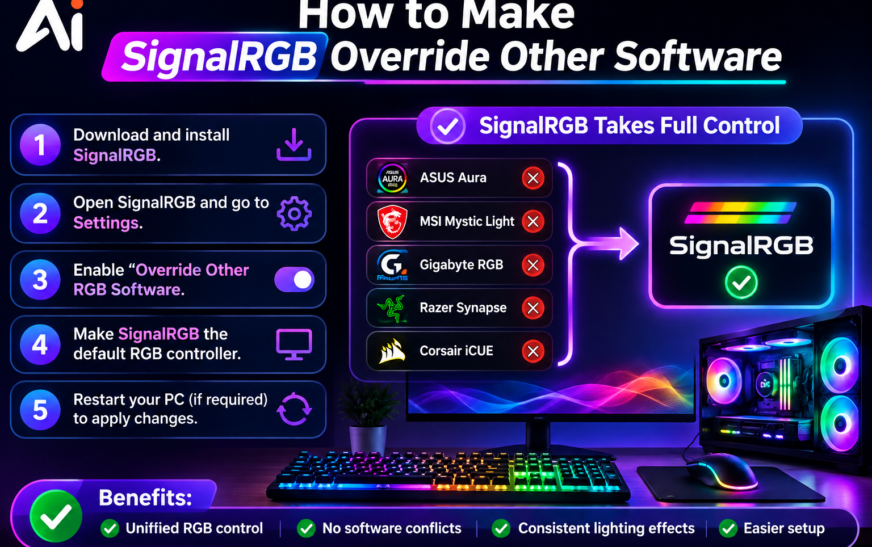
To make SignalRGB override other software, set SignalRGB as your main RGB controller and prevent other RGB applications from controlling the same devices. Close or disable conflicting RGB programs, check Windows startup and background processes, verify SignalRGB has the required permissions, and make sure your hardware is supported. If SignalRGB still cannot take control, restart the software and check for device-specific utilities or services that may be competing for RGB control.
Key Takeaways
- Make SignalRGB the primary RGB software for your compatible devices.
- Close or disable conflicting RGB software that tries to control the same hardware.
- Check Windows startup and background processes for competing RGB applications.
- Verify SignalRGB hardware compatibility and device detection.
- Check permissions if SignalRGB cannot access or control your RGB devices.
- Avoid running multiple RGB controllers that compete for the same hardware.
- If the SignalRGB override is not working, restart SignalRGB and troubleshoot conflicting services or applications.
- Keep your RGB setup simple by using one primary controller whenever possible.
How to Make SignalRGB Override Other Software
If you are wondering how to make SignalRGB override other software, the first step is to understand how RGB control works. SignalRGB is designed to synchronize compatible RGB devices through one interface, but another RGB application may still compete for control of the same hardware. This can create a SignalRGB software conflict, causing lighting effects to stop working or devices to appear unavailable.
To make SignalRGB the primary RGB software, close other RGB controllers that are currently running in the background. You may also need to disable conflicting programs from Windows startup so they do not automatically regain control. Checking SignalRGB override settings and confirming that your devices are supported can also help.
If you want SignalRGB exclusive control, avoid allowing multiple RGB programs to manage the same device simultaneously. Understanding these basics makes it easier to troubleshoot SignalRGB RGB control problems and maintain consistent lighting effects across your setup.
Why Does SignalRGB Conflict With Other RGB Software?
A SignalRGB software conflict usually happens when two or more RGB programs attempt to access the same hardware at the same time. This is a common RGB software conflict when users keep manufacturer utilities and SignalRGB running together. For example, motherboard, RAM, GPU, keyboard, or mouse software may continue running as SignalRGB background processes even when its main window is closed.
If you are dealing with a SignalRGB RGB software conflict, start by identifying which application is controlling the device. Multiple RGB controllers can compete for the same hardware, resulting in missing devices, incorrect lighting effects, or inconsistent synchronization. This is why a multiple RGB software conflict can make SignalRGB appear unreliable.
The easiest approach is to avoid unnecessary SignalRGB conflicting software and allow only one application to manage each RGB device. Closing competing programs, checking background services, and reviewing Windows startup entries can reduce RGB controller software conflict problems and give SignalRGB a more stable environment.
Common Causes of SignalRGB Conflicts
Background RGB utilities, automatic startup applications, device-specific services, and software with direct hardware access are among the most common causes. Understanding these sources makes it easier to troubleshoot SignalRGB before changing advanced settings.
How to Stop Other RGB Software From Controlling Your Devices
If you want to stop other RGB software from controlling devices, first identify which programs are competing with SignalRGB. Manufacturer utilities for motherboards, graphics cards, RAM, keyboards, and mice may continue running even after you close their main windows. These applications can create a SignalRGB conflicting software problem and prevent SignalRGB from maintaining control.
To disable conflicting RGB software, close unnecessary RGB applications and check their Windows startup settings. You can also stop applications that automatically launch in the background when they are not needed. This is one of the simplest ways to stop RGB software conflicts with SignalRGB.
If you are trying to prevent other RGB programs from taking control, avoid allowing multiple applications to manage the same device. Keep SignalRGB as your primary controller and use other utilities only when a specific hardware feature requires them. This can help SignalRGB take control of RGB devices more consistently.
For persistent problems, check background services associated with competing RGB programs. Removing unnecessary RGB controller software conflict sources can make SignalRGB synchronization much more reliable.
How to Prevent RGB Software From Starting With Windows
Windows startup programs can cause RGB conflicts before you even open SignalRGB. If another RGB utility launches automatically, it may gain control of your devices first. Checking SignalRGB Windows startup behavior and other RGB applications can therefore be an important part of troubleshooting.
To disable RGB software startup, open Windows startup settings and review applications that automatically launch when you sign in. If a manufacturer RGB utility is not required, disabling its automatic startup can reduce unnecessary SignalRGB background processes and prevent competing software from taking control.
This is especially useful when you want to prevent other RGB programs from taking control of your keyboard, mouse, RAM, motherboard, or other compatible hardware. After changing startup settings, restart Windows and check whether SignalRGB can maintain control consistently.
If the problem continues, look for background services rather than only visible applications. A multiple RGB software conflict can remain active even when an RGB program does not appear on the desktop. Keeping only the necessary RGB controller software running can provide a cleaner setup and improve overall SignalRGB performance.
Can SignalRGB Control RGB Devices Alongside Other Software?
Many users wonder how to use SignalRGB with other RGB software without creating conflicts. The answer depends on the hardware and the specific programs involved. Some applications can coexist, but problems may occur when two programs attempt to control the same RGB device simultaneously.
If you ask, can SignalRGB control RGB devices from other software, it is important to understand that SignalRGB needs compatible hardware and appropriate access to control supported devices. Running another RGB controller at the same time can create an RGB controller software conflict, causing lighting effects to stop, devices to disappear, or settings to change unexpectedly.
Before using SignalRGB compatible RGB software alongside SignalRGB, check whether both applications need direct access to the same device. If they do, it is generally better to choose SignalRGB as the primary controller and prevent the other application from managing that hardware.
Understanding SignalRGB vs other RGB software can also help you decide which application should handle your RGB ecosystem. Keeping control responsibilities clear can reduce conflicts and provide more reliable synchronization.
How to Stop Armoury Crate, iCUE, and Other RGB Software From Interfering
Popular RGB utilities can sometimes interfere with SignalRGB when both programs attempt to control the same hardware. If you are searching for how to stop Armoury Crate from controlling RGB with SignalRGB, begin by checking whether Armoury Crate or its related RGB services are running in the background. Preventing unnecessary RGB control can give SignalRGB better access to compatible devices.
The same principle applies when learning how to stop iCUE from interfering with SignalRGB. Corsair’s software may need access to certain Corsair devices, so identify which application should control the hardware before disabling any related features or services.
Other manufacturer utilities can also create a SignalRGB conflicting software issue. If multiple applications are managing your RGB devices, use disable other RGB software technology where appropriate and avoid unnecessary background controllers.
For users dealing with how to fix multiple RGB software conflicts, the best approach is to identify the competing applications, determine which one should control each device, and prevent unnecessary programs from launching automatically. This keeps your RGB setup cleaner and makes SignalRGB troubleshooting easier.
Advanced SignalRGB Troubleshooting
When basic solutions do not fix an RGB conflict, advanced SignalRGB troubleshooting can help identify what is preventing SignalRGB from controlling your devices. Work through the following areas one at a time rather than changing several settings at once.
Check SignalRGB Background Processes
Even when another RGB application is closed, its SignalRGB background processes or related services may continue running. Check Windows background processes and close unnecessary RGB utilities that could be accessing the same hardware.
Review SignalRGB Permissions
Incorrect permissions can affect SignalRGB hardware control. Check SignalRGB permissions and, when appropriate, run SignalRGB with administrator permissions to determine whether access to the affected device is being restricted.
Check SignalRGB Override Settings
If the SignalRGB override is not working, review the available SignalRGB override settings and make sure another RGB controller is not competing for the same device. Restart SignalRGB after making changes so it can detect the hardware again.
Test Devices One at a Time
If SignalRGB is not controlling RGB devices, isolate the problem by testing individual devices. This can help determine whether the issue affects one particular component or the entire RGB setup.
Remove Unnecessary RGB Controllers
Running several RGB utilities simultaneously can create additional conflicts. Disable or close unnecessary programs and keep SignalRGB as the primary controller for supported hardware.
Restart SignalRGB After Changes
After changing permissions, startup programs, or conflicting RGB utilities, completely close SignalRGB and restart it. A fresh launch can allow the software to regain access to compatible devices.
Keep Your RGB Setup Simple
A clean setup with fewer competing RGB applications makes SignalRGB troubleshooting easier. If problems continue, check device compatibility, background services, permissions, and manufacturer software before making more advanced changes.
Conclusion
Learning how to make SignalRGB override other software becomes much easier when you identify and remove competing RGB controllers. Close unnecessary applications, check background processes and Windows startup programs, verify hardware compatibility, and review permissions. Keeping SignalRGB as the primary controller can reduce conflicts and provide more consistent RGB synchronization across your compatible devices.
FAQs
How Do I Make SignalRGB Override Other Software?
Close competing RGB applications and make SignalRGB the primary RGB controller.
Check SignalRGB override settings, permissions, startup programs, and hardware compatibility.
Why Does SignalRGB Lose Control of My RGB Devices?
Another RGB application or background service may be controlling the same hardware.
A SignalRGB software conflict can cause lighting and synchronization problems.
How Do I Stop Other RGB Software From Controlling My Devices?
Close or disable unnecessary RGB controllers that access the same hardware.
You can also disable conflicting RGB software from Windows startup.
Can I Use SignalRGB With Other RGB Software?
Yes, but running multiple RGB controllers can create an RGB controller software conflict.
For better control, use SignalRGB as the primary controller for supported devices.
Why Is SignalRGB Not Controlling My RGB Devices?
Check hardware compatibility, device detection, permissions, and SignalRGB conflicting software.
These issues can prevent proper SignalRGB hardware control.
Does SignalRGB Need Administrator Permissions?
Some devices may require additional access for proper RGB control.
Check SignalRGB permissions and administrator access if your device is detected but not controllable.
How Do I Fix SignalRGB Override Not Working?
Close competing software, check SignalRGB background processes, and restart SignalRGB.
Also review SignalRGB override settings and confirm your hardware is supported.
Why Can’t SignalRGB Override Other Software?
Another RGB program or background service may still control the same hardware.
Check for multiple RGB software conflicts and disable unnecessary controllers.
How Do I Give SignalRGB Priority Over Other Software?
Stop competing RGB applications from controlling the same device and keep SignalRGB active.
This helps give SignalRGB priority over other software and maintain consistent RGB control.