
You don’t need expensive software to create engaging videos. Whether you want to edit YouTube content, make social media clips, produce tutorials, or improve your personal recordings, the right video editor can make the process easier. The challenge is finding software that offers the features you need without unnecessary complexity, high costs, or performance problems.
Good video editing software should match your experience level, computer specifications, and creative goals. Some programs focus on quick, simple edits, while others provide advanced tools for color correction, audio mixing, visual effects, and professional production. In this guide, we’ll compare popular options and explain how to choose the right one for your needs.
Good video editing software helps you cut clips, arrange footage, add transitions, edit audio, insert text, and export finished videos. DaVinci Resolve is worth considering for advanced editing, CapCut for accessible editing with additional creative features, Clipchamp for browser-based projects, iMovie for Apple users, and Kdenlive for free, open-source editing across multiple desktop platforms. The best choice depends on your budget, editing experience, and computer.
Key Takeaways
- DaVinci Resolve: A strong option for users who want advanced editing, color correction, effects, and audio tools.
- CapCut: Suitable for creators who prefer an accessible interface and tools for social media content.
- Clipchamp: Useful for quick edits in a web browser or through its Windows experience.
- iMovie: A straightforward choice for users working within Apple’s ecosystem.
- Kdenlive: A free, open-source editor available for Windows, macOS, and Linux.
- Shotcut: Another flexible, free option for users who want timeline-based editing.
- Choosing the right editor: Compare features, export restrictions, system requirements, and ease of use before installing software.
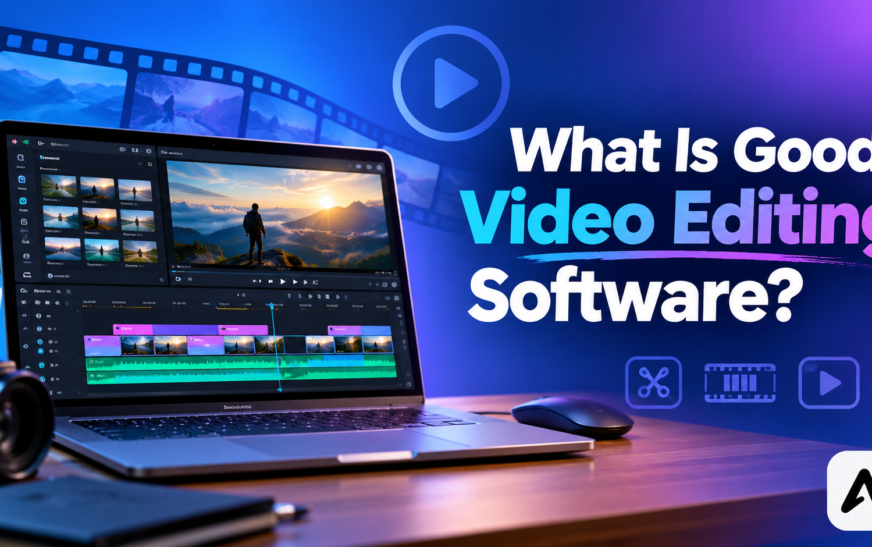
What Is Good Video Editing Software?
Good video editing software makes it possible to turn raw footage into a finished video through an organized and reliable editing workflow. It should provide the tools needed for your projects without making everyday tasks unnecessarily difficult.
For example, a beginner creating a short tutorial may only need to remove unwanted sections, add a title, record a voiceover, and export the result. A professional creator may need multiple timelines, precise color grading, audio mixing, motion graphics, and advanced export controls.
A good editor should also support your preferred video formats and operating system. Performance matters just as much as features because even an impressive editing program can become frustrating if it struggles with your footage.
What Features Should Good Video Editing Software Include?
Timeline editing: A timeline makes it easier to arrange clips, split footage, adjust the sequence, and combine different media elements.
Audio controls: Good audio tools let you adjust volume, add music, synchronize voiceovers, and reduce distracting sound where supported.
Text and transitions: Titles, subtitles, transitions, and overlays help communicate information and create a consistent visual style.
Color correction and effects: These features help improve the appearance of footage and create a more polished result.
Export settings: Resolution, frame rate, video format, and quality controls help you prepare files for YouTube, social platforms, presentations, or other uses.
Ease of use: An understandable interface and accessible tutorials can reduce the time needed to learn the software.
Free-version limitations: Before choosing a free editor, check whether its current edition includes watermarks, export restrictions, paid effects, or other limitations that could affect your projects.
What Is the Best Video Editing Software?
There is no single video editor that works best for everyone. Some programs are designed for professional-level production, while others prioritize simplicity and speed.
The following options serve different needs, from advanced desktop editing to quick online projects.
DaVinci Resolve: Best for Advanced Video Editing
DaVinci Resolve is a powerful editing application from Blackmagic Design. It combines video editing with dedicated tools for color correction, visual effects, audio post-production, and exporting finished projects.
Its feature set makes it suitable for creators who want to learn advanced editing techniques or work on more demanding productions. Beginners can also start with basic cuts and gradually explore its additional capabilities.
The main drawback is its learning curve. The number of tools and workspace options can feel overwhelming if you only want to trim a few clips. Performance also depends on your hardware, footage, and project complexity.
Advantages: Extensive editing tools, advanced color grading, audio production features, and a free edition.
Limitations: Requires time to learn and may be demanding on less powerful computers. Some advanced capabilities are reserved for the paid Studio edition.
Best for: Creators who want a comprehensive editing environment and room to develop advanced skills.
CapCut: Best for Easy Video Editing
CapCut is a popular option for creators who want to edit videos without beginning with a complicated professional workflow. Its editing tools support common tasks such as arranging clips, adding text, applying effects, and creating content for social media.
Depending on the version and plan, additional capabilities may include keyframe animation, background removal, captions, and AI-assisted editing tools.
Although the interface is accessible, not every feature is necessarily free. Some effects, templates, and advanced tools may require a paid plan, so check the current terms before relying on a particular feature.
Advantages: Accessible workflow, creative effects, and tools for short-form content.
Limitations: Some features are paid, and it may not offer the same depth of control as a specialist professional editor.
Best for: Beginners, social media creators, and users who want to produce engaging videos quickly.
Clipchamp: Best for Browser-Based Video Editing
Clipchamp is a video editor associated with Microsoft that supports browser-based editing and a Windows experience. It lets users arrange clips on a timeline, add text and transitions, adjust video settings, and work with templates and other included assets.
Its browser-based workflow can be convenient when you do not want to install a traditional desktop editing program. However, browser performance depends on your computer and internet connection, particularly when working with large files or demanding projects.
Check the current free-plan export resolution and asset restrictions before starting a project.
Advantages: Convenient access, timeline editing, templates, and a relatively approachable interface.
Limitations: Performance can vary with browser and system resources, and some stock assets or features may be restricted.
Best for: Beginners and creators who prefer straightforward editing through a browser.
iMovie: Best for Mac Users
iMovie is Apple’s beginner-friendly video editing application for supported Apple devices. It provides tools for arranging footage, trimming clips, adding titles, using transitions, and improving the presentation of everyday videos.
Its integration with Apple’s ecosystem makes it convenient for users who record footage on an iPhone and continue editing on a Mac or another supported Apple device.
However, its simpler workflow and feature set may not satisfy users who need extensive professional controls. Compatibility with specific devices and versions should be checked before installing it.
Advantages: Simple interface, useful basic editing features, and convenient integration with Apple devices.
Limitations: Available within Apple’s supported ecosystem, with fewer advanced controls than comprehensive professional editing suites.
Best for: Mac users, beginners, and people creating personal videos or simple YouTube content.
Kdenlive: Best Free Open-Source Video Editor
Kdenlive is a free, open-source video editor available for Windows, macOS, and Linux. It offers timeline editing, multiple tracks, transitions, effects, and controls for users who want more flexibility than a basic clip trimmer provides.
Its range of features makes it useful for both everyday projects and more involved editing workflows. Users can begin with basic cutting and gradually explore features such as color adjustments, keying, and other effects.
As with other editors, performance and available capabilities can depend on the installed version, hardware, and configuration.
Advantages: Open-source software, multi-track editing, and a broad set of creative tools.
Limitations: Some advanced workflows require learning, and rendering performance can vary between systems.
Best for: Users who want a free desktop editor with a wide range of features, particularly those using Linux.
Shotcut: Best for Flexible Free Editing
Shotcut is another free, open-source video editor that supports timeline-based editing, filters, transitions, and a variety of media formats.
It can be useful for educational videos, YouTube projects, personal recordings, and other general editing tasks. Its range of controls also provides opportunities to learn more advanced editing techniques over time.
However, its interface may take some getting used to, particularly for users who have never worked with a timeline editor.
Advantages: Free and open-source, flexible editing tools, and broad format support.
Limitations: The interface may require practice, and playback performance depends on the project and computer.
Best for: Users who want a flexible free editor without committing to a paid subscription.
Best Video Editing Software Comparison
The table below summarizes the main differences to help you shortlist suitable programs.
| Software | Best for | Main strength | Main consideration |
| DaVinci Resolve | Advanced editing | Comprehensive production tools | Steeper learning curve |
| CapCut | Social media content | Accessible creative workflow | Some features require payment |
| Clipchamp | Browser-based editing | Convenient online workflow | Depends partly on browser and system performance |
| iMovie | Apple users | Simple editing experience | Limited to supported Apple devices |
| Kdenlive | Open-source editing | Multi-track tools across desktop platforms | Some workflows require practice |
| Shotcut | General free editing | Flexible timeline and filters | Interface may take time to learn |
The best choice is the program that supports your required features and performs well on your computer. Pricing, export limits, and individual features can change, so verify the current details on each developer’s official website.
What Is Good Video Editing Software for Beginners?
For beginners, good video editing software should make common tasks easy to understand. You should be able to import footage, arrange clips, remove mistakes, add titles, adjust audio, and export the finished video without spending too much time searching for basic controls.
CapCut and Clipchamp are worth considering if you prefer an accessible workflow. iMovie is a practical option for users with supported Apple devices, while OpenShot can be considered for learning basic timeline editing. Shotcut and Kdenlive offer more flexibility as your editing skills develop.
How to Choose Beginner-Friendly Video Editing Software
Start by identifying the kind of videos you want to make. Simple tutorials and short social clips may not require the same tools as long YouTube videos or multi-camera projects.
Next, check whether the software includes the features you need in its free edition. Test the interface by editing a short clip and exporting a small project before committing to a long workflow.
Finally, consider tutorials and documentation. Helpful learning resources can make it much easier to move from basic edits to more advanced techniques.
Which Video Editor Is Best for a Low-End PC?
The best video editor for a low-end PC depends on your hardware and the complexity of your footage. A program that runs smoothly on one computer may struggle on another, even if both systems have similar memory capacity.
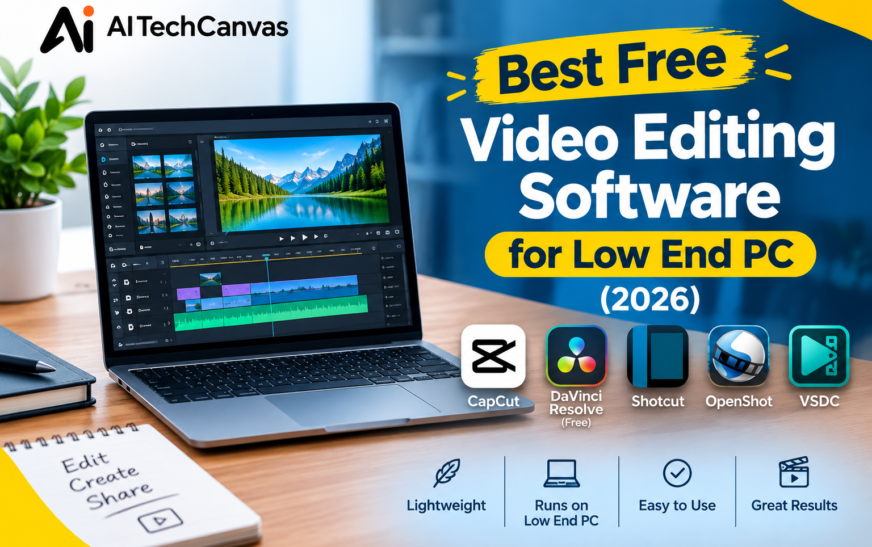
For simple cutting and trimming, Avidemux and LosslessCut are worth considering because they focus on straightforward media-processing tasks. For more complete editing, Shotcut, VSDC Free Video Editor, or OpenShot may be suitable, depending on the computer and project.
How to Improve Editing Performance on an Older Computer
Close unnecessary applications before editing to free up system resources. Reduce preview quality when the editor offers that option, and avoid adding many effects until you are ready to render the final video.
If supported, proxy files can make high-resolution footage easier to edit. Keeping projects organized and working with suitable media formats may also improve the editing experience.
Before installing a program, compare its current system requirements with your computer’s specifications. For more targeted recommendations, see our related guide to the best free video editing software for low-end PCs.
Best Video Editing Software for YouTube Videos
The best video editor for YouTube depends on your content and production workflow. Tutorials may require screen recordings and clear captions, while gaming videos may need synchronized audio, multiple clips, and more elaborate effects.
DaVinci Resolve is worth considering for creators who want extensive editing control. CapCut can be useful for accessible editing and social media-style content, while Clipchamp may suit creators who prefer browser-based projects. Shotcut and Kdenlive are additional free options for desktop editing.
Regardless of the software, focus on clear audio, readable titles, engaging pacing, and suitable export settings. Make sure you also have permission to use any music, images, or other third-party assets included in your video.
Free vs. Paid Video Editing Software
Free and paid video editing programs can both be suitable for creating quality content. The difference depends on the specific software, its available features, and the requirements of your project.
Free software is often enough for basic editing, tutorials, social clips, and many YouTube videos. Paid editions may offer additional effects, specialized tools, expanded workflows, or other capabilities that matter to frequent creators.
Before paying for an editor, identify the exact feature you need. A subscription is not automatically worthwhile if a free alternative already handles your projects.
How to Choose the Right Video Editing Software
The easiest way to choose a video editor is to compare your needs with the program’s capabilities.
First, decide what you will create: short social clips, tutorials, gaming videos, vlogs, or longer productions. Then check your computer’s operating system, processor, RAM, storage, and graphics capabilities against the software’s requirements.
Next, consider how much editing control you need. Beginners may prefer a simple interface, while experienced users might prioritize color grading, audio mixing, effects, and multi-track editing.
Finally, test the export process. Confirm that the free or paid edition supports the resolution, format, and frame rate you need, and check for watermarks or other restrictions.
Conclusion
Good video editing software should match your creative goals, experience level, and computer rather than simply offer the largest number of features. DaVinci Resolve is a strong option for advanced editing, CapCut offers an accessible workflow for many creators, Clipchamp is useful for browser-based projects, and iMovie is a practical choice for Apple users. Kdenlive and Shotcut are worth exploring if you want free, open-source desktop editing tools.
Take the time to test a few suitable options with your own footage. Comparing ease of use, performance, export settings, and free-plan restrictions will help you find an editor that supports your projects without unnecessary expense.
FAQs
What is the easiest video editing software to use?
CapCut, Clipchamp, and iMovie are worth considering for accessible editing workflows. The easiest option depends on your device and the complexity of the videos you want to create.
What is the best free video editing software?
DaVinci Resolve, Shotcut, and Kdenlive are worth considering for different types of editing. DaVinci Resolve offers extensive production tools, while Shotcut and Kdenlive provide free, open-source alternatives.
Is CapCut good for video editing?
CapCut can be a useful option for beginners and social media creators because it combines an accessible interface with creative editing tools. Check the current free and paid feature limits before choosing it.
Which video editing software is best for YouTube?
DaVinci Resolve is worth considering for advanced YouTube projects, while CapCut, Clipchamp, Shotcut, and Kdenlive may suit different budgets and workflows. Your content type and computer specifications should guide your choice.
Can I edit videos for free without a watermark?
Some editors offer watermark-free exports in their free editions. However, restrictions can vary by software, version, and plan, so verify the current export conditions before beginning your project.
Which video editor is suitable for a low-end PC?
Avidemux and LosslessCut are worth considering for simple cutting tasks. For more complete editing, test lightweight workflows in programs such as Shotcut or OpenShot and compare performance against your computer’s specifications.
Is free video editing software enough for professional work?
Free software can support high-quality projects when it includes the required editing and export features. Professional results also depend on footage, editing skills, audio quality, and production techniques.
What should I check before downloading video editing software?
Check operating system compatibility, minimum hardware requirements, supported file formats, export resolution, watermark restrictions, pricing, and whether the features you need are included in the edition you plan to use.