
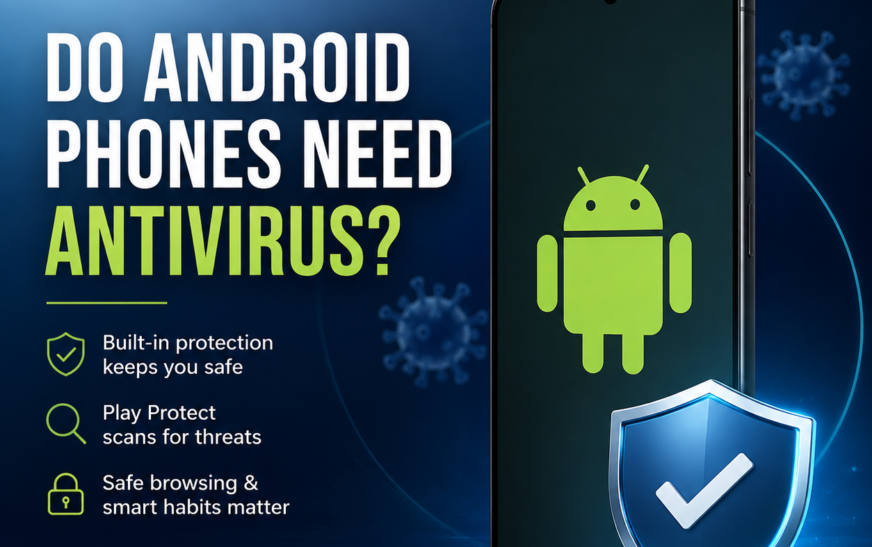
Your Android phone stores private photos, messages, passwords, payment details, and personal files. So, it is natural to ask: Do Android phones need antivirus software?Most users do not need third-party antivirus software on a modern Android phone. Android already includes security features such as Google Play Protect, app permissions, spam protection, app scanning, and regular security updates.
However, extra antivirus software may be helpful if you download APK files from unknown websites, use third-party app stores, visit risky websites, use an older phone, or want additional privacy and anti-theft features.The best protection combines Android’s built-in security tools with safe browsing habits, strong passwords, regular updates, and two-factor authentication.
Key Takeaways
- Most users do not need third-party antivirus software on a modern Android phone.
- Google Play Protect provides built-in protection against many harmful apps.
- Android security updates are essential because antivirus apps cannot fix operating-system vulnerabilities.
- Downloading unknown APK files and using unofficial app stores increases malware risk.
- Traditional computer viruses are less common on Android; harmful apps, spyware, adware, ransomware, and phishing are more common threats.
- Extra antivirus software may be useful for risky browsing, older phones, business use, or additional web and anti-theft protection.
- Never install several antivirus apps at the same time.
- Check sensitive permissions, especially Accessibility, Notification access, SMS, and “Install unknown apps.”
- Fake virus warnings in browser pop-ups are often scams.
- Use strong, unique passwords and two-factor authentication for Google, banking, and smart-home accounts.
- Regular backups can help you recover after malware, theft, or a factory reset.
- If you use an iPad, read our guide on whether an iPad needs antivirus software.
What Is Antivirus Software?
Antivirus software is a security program that scans apps, files, and links for harmful software or suspicious activity.
Depending on the app, it may help protect against:
- Malware
- Spyware
- Adware
- Ransomware
- Harmful applications
- Phishing websites
- Suspicious downloads
- Unsafe Wi-Fi networks
Many Android security apps also include web protection, privacy checks, phone location, remote locking, data deletion, and identity monitoring.
Antivirus software adds another layer of protection, but it cannot replace Android security updates, strong passwords, careful browsing, and secure account settings.
Important: A virus is technically one type of malware. In everyday use, people often say “virus” when referring to malware, spyware, adware, ransomware, phishing, or other harmful activity.
Does Android Have Antivirus Built In?
Yes. Android phones include Google Play Protect, a built-in security service from Google.
Google Play Protect can:
- Scan apps before installation
- Check apps already installed on your phone
- Warn you about potentially harmful apps
- Disable or remove some dangerous apps
- Scan apps installed outside Google Play
- Alert you about suspicious activity
Some phone manufacturers also provide extra security tools. Samsung phones, for example, include Samsung Knox features. Other brands may provide their own privacy, app-scanning, or device-security tools.
The exact protection available depends on your phone model, Android version, manufacturer, and update schedule.
What Is Google Play Protect?
Google Play Protect is Android’s built-in app-scanning system. It works in the background and checks apps for harmful behaviour.
It can help protect you from apps that:
- Steal personal information
- Display unwanted advertisements
- Access sensitive permissions without a valid reason
- Download additional harmful software
- Try to control parts of your device
- Behave like spyware or other malware
How to Run a Google Play Protect Scan
- Open the Google Play Store.
- Tap your profile picture in the top-right corner.
- Select Play Protect.
- Tap Scan.
- Review any warnings or recommendations.
Keep Play Protect enabled and connect your phone to the internet so it can receive security warnings.
Is Google Play Protect Enough?
For many people, yes. Google Play Protect is usually enough when you:
- Install apps from the Google Play Store
- Keep Android and your apps updated
- Avoid suspicious links
- Do not install cracked or modified apps
- Review app permissions
- Use two-factor authentication
- Use a secure screen lock
- Avoid sharing passwords and verification codes
However, Google Play Protect cannot stop every threat. It may not protect you from:
- A fake website designed to steal your password
- A scammer pretending to be your bank
- A harmful link in a text message
- An unsafe file downloaded manually
- Weak or reused passwords
- Someone who already has access to your account
- A scam call that tricks you into revealing private information
Your phone’s security depends on both technology and your own choices.
Why Android Security Updates Matter More Than Antivirus
Security updates fix weaknesses in Android and other system components. If a vulnerability is not patched, attackers may exploit it even when an antivirus app is installed.
You should:
- Install Android security updates promptly
- Update apps through official stores
- Avoid using unsupported phones for sensitive activities
- Check your phone’s security patch level regularly
You can usually check for updates under:
Settings > System > Software update
On some phones, the option may appear under Settings > Security and privacy or Settings > About phone.
If your phone no longer receives security updates, an antivirus app may provide additional scanning and web protection, but it cannot fully replace a supported operating system.
Do Android Phones Get Viruses Easily?
Android phones can get malware, but the risk is much higher when users install apps from unknown sources or interact with suspicious links.
Common ways malware reaches an Android phone include:
- Downloading apps from random websites
- Installing modified or cracked APK files
- Using unofficial app stores
- Clicking fake delivery or banking links
- Installing apps from unknown developers
- Giving unnecessary Accessibility access to an app
- Ignoring security warnings
- Downloading files from suspicious messages
- Installing fake updates or fake security apps
A phone may not show a clear warning when malware is installed. That is why you should check app permissions, install updates, and avoid untrusted downloads.
When Should You Install Antivirus Software on Android?
A separate antivirus app may be useful in the following situations.
Download APK Files
APK files are Android installation files. They can be safe when obtained from a trusted source, but unknown websites may add harmful code.
Be especially careful with:
- Cracked apps
- Pirated games
- Unofficial premium apps
- Modified versions of popular apps
- APK files shared through unknown messages
- Apps that ask you to disable security warnings
If you rarely install APK files and use official app stores, you may not need additional antivirus protection.
You Use Third-Party App Stores
Official app stores generally provide more safety checks than unknown app websites. If you use a third-party store, extra protection may be helpful, but it does not make every app safe.
Research the store and developer before downloading anything.
You Visit Risky Websites
Some websites use fake download buttons, misleading pop-ups, or login forms designed to steal information. Antivirus apps with web protection may warn you before opening suspicious pages.
Still, do not rely on a warning tool alone. Check website addresses carefully and avoid entering passwords on unfamiliar pages.
You Use an Older Android Phone
Older devices may receive fewer security updates. An antivirus app may offer extra scanning, but it cannot fully replace an updated operating system.
If your phone no longer receives security updates, avoid using it for highly sensitive activities where possible.
You Want Extra Anti-Theft Features
Some mobile security apps provide:
- Remote phone location
- Remote locking
- Data deletion
- SIM-change alerts
- Theft notifications
- Account monitoring
Check your phone’s existing features first. You may already have some of these tools through Google Find My Device or the manufacturer’s security service.
You Use Your Phone for Business
Business users may handle customer information, confidential documents, payment data, or work accounts. An organisation may require mobile security software, device management, or a work profile.
A personal antivirus app is not a replacement for:
- Mobile device management
- Work profiles
- App restrictions
- Remote administration
- Endpoint security policies
- Company password and access rules
When You Probably Do Not Need Antivirus Software
You may not need a separate antivirus app if you:
- Download apps only from Google Play
- Keep Play Protect enabled
- Install Android updates regularly
- Avoid unknown links and files
- Use strong, unique passwords
- Turn on two-factor authentication
- Review app permissions
- Avoid cracked apps
- Keep Android security warnings enabled
For this type of user, another antivirus app may add little value and may use extra battery, storage, or background processing.
Android App Permissions You Should Check
App permissions allow an application to use certain phone features or personal information. Some permissions are necessary, while others may create privacy and security risks.
Pay particular attention to:
- Camera
- Microphone
- Location
- Contacts
- Messages
- Phone calls
- Files and photos
- Accessibility access
- Notification access
- Device administrator access
- Install unknown apps
- VPN access
An app should not receive access that it does not need for its main function.
Why Accessibility Access Matters
Accessibility services help people interact with their phones, but harmful apps may misuse this access to:
- Read information on the screen
- Press buttons automatically
- Approve actions
- Capture sensitive information
- Control other apps
Do not give Accessibility access to an app unless you understand why it needs it and trust its developer.
How to Check App Permissions
- Open Settings.
- Select Privacy or Security and privacy.
- Open Permission manager.
- Select a permission.
- Review the apps with access.
- Remove access that an app does not need.
Menu names may vary between Android brands.
How to Disable “Install Unknown Apps”
Installing apps outside official stores can increase risk. You can control which apps are allowed to install unknown applications.
Usually, the setting is found under:
Settings > Apps > Special app access > Install unknown apps
Select your browser, file manager, or another app and disable this permission when it is not needed.
Keep this setting disabled unless you have a specific and trusted reason to use it.
Signs of Malware on an Android Phone
One unusual symptom does not prove that your phone has malware. However, several signs together deserve attention:
- Battery draining much faster than normal
- Unwanted advertisements appearing outside a browser
- Unknown apps appearing on the phone
- Frequent browser redirects
- The phone becoming slow without a clear reason
- Unusually high mobile-data usage
- Apps opening or closing by themselves
- Overheating when the phone is not being used
- New permissions being requested unexpectedly
- Unusual activity on banking or social-media accounts
- Messages being sent without your permission
- Settings changing unexpectedly
Some of these problems can also result from an old battery, limited storage, a faulty app, or a software problem.
How to Check an Android Phone for Malware
Run a Play Protect Scan
Open the Google Play Store, choose Play Protect, and start a scan.
Check Recently Installed Apps
Open Settings > Apps and look for apps you do not recognise. Remove apps that you did not install or no longer trust.
Also check apps installed around the time the problem started.
Review App Permissions
Check access to:
- Camera
- Microphone
- Location
- Contacts
- Messages
- Phone calls
- Files and photos
- Accessibility services
- Notifications
- Device administration
Remove unnecessary access and uninstall suspicious apps.
Check Battery and Data Usage
Open your battery and mobile-data settings. Look for an unknown app using an unusual amount of power or data.
Check Device Administrator Apps
Some harmful apps make removal difficult by requesting device administrator access. Look under your security settings for device-admin apps and remove access from anything unfamiliar before uninstalling it.
Update Your Phone
Install all available Android security updates and app updates. Updates often fix security problems and software bugs.
Use Safe Mode if Necessary
If an app prevents removal or displays unwanted activity, restart the phone in Safe Mode and try uninstalling it. The method varies by manufacturer.
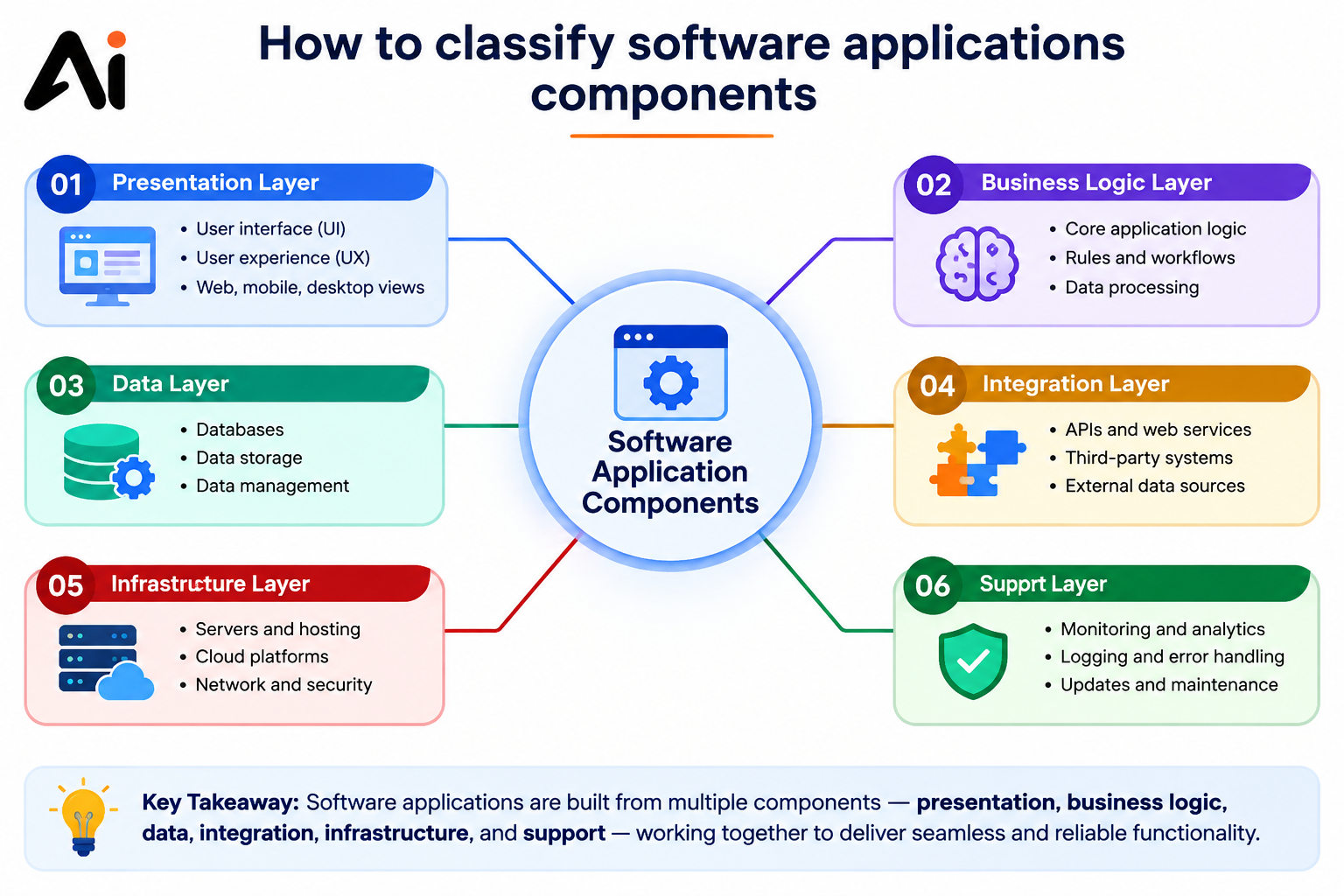
Android phones can be affected by malware, spyware, adware, ransomware, phishing attacks, and harmful apps. Similar security concerns can affect other computing devices, so it is important to understand how software applications are classified and what different application types can do. Learn more in our guide on how to classify software application components.
How to Remove Malware From an Android Phone
- Run a Google Play Protect scan.
- Uninstall suspicious or recently installed apps.
- Remove unnecessary app permissions.
- Disable unfamiliar Accessibility or device-administrator access.
- Clear suspicious browser notifications and website permissions.
- Update Android and all apps.
- Change important passwords from a trusted device if you suspect account theft.
- Turn on two-factor authentication.
- Check your bank and other important accounts for unusual activity.
- Use Safe Mode if an app prevents removal.
- Back up important files.
- Perform a factory reset only if the problem continues.
A factory reset removes data and settings, so use it as a final step. Before resetting, make sure you know your Google account password and have backed up important files.
If you notice unauthorised bank transactions, contact your bank immediately.
Beware of Fake Virus Warnings
A browser pop-up saying “Your phone has five viruses” or “Your Android is infected” is often a scam. A webpage cannot reliably scan your entire phone simply because you opened it.
Do not:
- Tap suspicious “Clean now” buttons
- Call a phone number shown in a pop-up
- Install an app suggested by an unknown webpage
- Enter your Google or banking password
- Share verification codes
- Allow remote access to your phone
Close the browser tab, clear suspicious website permissions, and run a Google Play Protect scan through the official Play Store app.
Do Samsung Phones Need Antivirus Software?
Most Samsung users do not need a separate antivirus app. Samsung phones use Google Play Protect and include Samsung Knox security features.
You may consider additional protection if you:
- Install apps from unknown sources
- Download APK files regularly
- Use your phone for sensitive business work
- Need advanced web protection
- Want extra anti-theft features
Samsung’s built-in protection works best when you install updates and avoid untrusted apps.
Do Google Pixel Phones Need Antivirus Software?
Google Pixel phones receive regular Android and security updates. They also include Google Play Protect and other built-in safety tools.
For normal use, a separate antivirus app is usually optional on a Pixel phone. Keep the device updated and install apps only from trusted sources.
Is Free Antivirus for Android Worth Using?
Some free antivirus apps provide useful scanning and security checks. However, free apps may include:
- Advertisements
- Limited features
- Paid upgrades
- Aggressive notifications
- Extra data collection
Before installing a free antivirus app, check:
- The developer’s reputation
- Recent user reviews
- Update history
- Requested permissions
- Privacy policy
- Independent security test results
Do not install an app simply because it claims that your phone has many viruses. Some fake security apps use frightening alerts to make users pay or grant unnecessary access.
Are Antivirus Apps Always Safe?
No. Not every app labelled as antivirus is trustworthy. Some security apps may request excessive permissions, collect unnecessary personal data, or show misleading warnings.
Before installing one:
- Download it from the official Google Play Store
- Check the developer’s name
- Read the privacy policy
- Review requested permissions
- Check the update history
- Look for independent security testing
- Avoid apps with repeated fake-virus warnings
- Read subscription terms carefully
A security app should improve your privacy, not create a new privacy problem.
What Is the Best Antivirus for Android Phones?
The best choice depends on your needs. Consider malware detection, web protection, privacy features, battery usage, price, and the provider’s reputation.
| Security app | Best for | Common features |
| Bitdefender Mobile Security | Lightweight protection | Malware scanning and web protection |
| Norton Mobile Security | Web and phishing protection | Website checks and security alerts |
| Malwarebytes for Android | Malware and spyware checks | Threat scanning and privacy checks |
| Avast Mobile Security | Basic free tools | Malware scanning and privacy features |
| Sophos Intercept X for Mobile | Users seeking free security tools | Link checking and app scanning |
Features, prices, and availability can change. Check official product pages before making a purchase.
Do not install several antivirus apps together. One trusted security app is enough for most users.
Can Antivirus Software Slow Down an Android Phone?
Yes, some antivirus apps can use additional battery, storage, and background processing. The effect is usually small on newer phones but may be noticeable on older devices.
To reduce the impact:
- Install only one security app
- Choose a trusted provider
- Avoid apps with unnecessary features
- Remove apps you no longer use
- Check battery usage after installation
- Disable features you do not need
How to Protect an Android Phone Without Antivirus
Follow these steps:
- Install apps from the Google Play Store.
- Keep Google Play Protect enabled.
- Update Android regularly.
- Use a strong PIN, password, or biometric screen lock.
- Turn on two-factor authentication.
- Use unique passwords for important accounts.
- Avoid cracked and modified apps.
- Do not click unknown links.
- Check app permissions.
- Keep “Install unknown apps” disabled when not needed.
- Back up important photos and files.
- Use secure Wi-Fi.
- Do not give unnecessary Accessibility access to apps.
- Review Google account activity regularly.
- Remove old devices and unused apps from your accounts.
Android Phones and AI Technology
AI technology is becoming more common in Android security. It can help identify unusual activity, suspicious messages, scam calls, and harmful app behaviour.
AI-based security may help detect:
- A message that looks like a payment scam
- A login attempt from an unusual location
- An app using permissions in an unexpected way
- A website that resembles a bank or shopping service
- Unusual activity in an account
- Messages that use urgent or manipulative language
AI-generated messages, fake support calls, and realistic phishing content can also make scams harder to identify.
AI can improve protection, but it is not perfect. Do not share passwords, verification codes, or banking details simply because a message or call appears convincing.
Smart Home Devices and Android Security
Many people use an Android phone to control smart-home devices, including:
- Smart cameras
- Video doorbells
- Smart locks
- Smart speakers
- Smart lights
- Smart thermostats
- Home alarm systems
If someone gains access to your phone or smart-home account, they may be able to view devices or change settings.
Protect connected devices by:
- Using a unique password
- Turning on two-factor authentication
- Updating device software
- Installing official companion apps
- Checking account access regularly
- Using secure home Wi-Fi
- Removing old users and unused devices
- Avoiding shared administrator accounts when possible
Smart-Home Devices and AI Technology
AI helps smart-home devices recognise patterns, detect movement, answer questions, and automate tasks. These features can involve sensitive data, so review privacy settings and control access to your microphone, camera, location, voice recordings, home activity, and personal account.
Do Android Phones Need Antivirus for Banking and Payments?
Mobile banking requires extra care, even if you do not install antivirus software.
To protect banking and payment information:
- Install banking apps only from official app stores
- Use a screen lock and biometric protection
- Keep transaction notifications enabled
- Avoid banking on unknown public Wi-Fi
- Do not share one-time passwords or verification codes
- Review account activity regularly
- Remove unfamiliar apps with Accessibility access
- Never allow an unknown person to control your phone remotely
- Contact your bank immediately about suspicious transactions
An antivirus app cannot reverse a payment that you voluntarily approved after being tricked by a scammer. Account protection and careful decisions are essential.
What to Do If Your Android Phone Is Lost or Stolen
If your phone goes missing:
- Use Google Find My Device to locate it.
- Lock the phone remotely.
- Add a contact number or message to the lock screen.
- Erase the device remotely if recovery seems unlikely.
- Contact your mobile provider to block the SIM.
- Change your Google account password.
- Sign out of important accounts.
- Contact your bank if payment apps or banking information may be exposed.
- Report the phone using its IMEI number if required.
Before an incident happens, enable Find My Device, use a secure screen lock, and keep lock-screen notification previews hidden.
Data Backup and Recovery
Regular backups help you recover after malware, theft, device damage, or a factory reset.
Back up:
- Photos and videos
- Contacts
- Messages
- Important documents
- App data where supported
- Authentication and recovery information
You can use Google Photos, Google One, or another trusted backup service. Keep an offline copy of especially important files.
After a factory reset, do not automatically reinstall every old app. Reinstall only trusted apps from official sources.
Common Android Security Mistakes
Avoid these mistakes:
- Downloading apps from random websites
- Installing cracked or pirated apps
- Ignoring security updates
- Giving every app access to your files
- Allowing unnecessary Accessibility access
- Using the same password everywhere
- Clicking links from unknown senders
- Installing multiple antivirus apps
- Trusting fake browser virus warnings
- Using weak passwords for smart-home accounts
- Sharing verification codes with callers
- Allowing unknown people to control your phone remotely
- Keeping “Install unknown apps” enabled unnecessarily
Conclusion
Most Android phones do not need separate antivirus software. Google Play Protect, regular security updates, trusted apps, and safe browsing habits provide strong protection for everyday users.
Extra antivirus software may be useful if you download APK files, use third-party app stores, visit risky websites, own an older phone, manage sensitive business information, or want additional web, privacy, and anti-theft tools. If you install one, choose a reputable app and use only one security service.
The best Android protection combines built-in security with updated software, strong passwords, two-factor authentication, careful permission management, regular backups, and responsible online behaviour. These steps also help protect banking accounts, Google accounts, and smart-home devices controlled through your phone.
If you also use an iPad, read our guide on whether an iPad needs antivirus software to learn how Apple’s built-in security features protect the device.
Frequently Asked Questions
Do Android phones need antivirus software?
Most users do not need a separate antivirus app if they use trusted apps, keep Google Play Protect enabled, and install security updates.
Does Android have antivirus built in?
Yes. Google Play Protect is built into Android and scans apps for harmful software.
Can Android phones get viruses?
Yes. Android phones can be affected by malware, spyware, adware, ransomware, phishing attacks, and harmful apps. Traditional viruses are less common than these other threats.
Do I need antivirus for a Samsung phone?
Most Samsung users do not need extra antivirus software because Samsung Knox and Google Play Protect provide built-in security.
Do Google Pixel phones need antivirus software?
Usually not for normal use. Pixel phones receive regular updates and include Google Play Protect.
What is the best free antivirus for Android?
Google Play Protect is the simplest built-in option. Other reputable apps may offer extra scanning, web protection, or privacy tools.
Are free antivirus apps safe?
Some are safe, but not all. Check the developer, requested permissions, privacy policy, update history, and independent reviews before installing one.
Can antivirus software stop phishing scams?
Some antivirus apps can warn you about known malicious websites and links. However, no app can stop every scam, so check URLs and never share passwords or verification codes.
Can I use two antivirus apps on Android?
It is usually unnecessary. Multiple antivirus apps may conflict, use extra battery, and produce repeated notifications. Use one trusted security solution.
What should I do if my Android shows a fake virus warning?
Do not click the warning, call the displayed number, or install the suggested app. Close the page, clear suspicious browser permissions, and run a scan using Google Play Protect.