
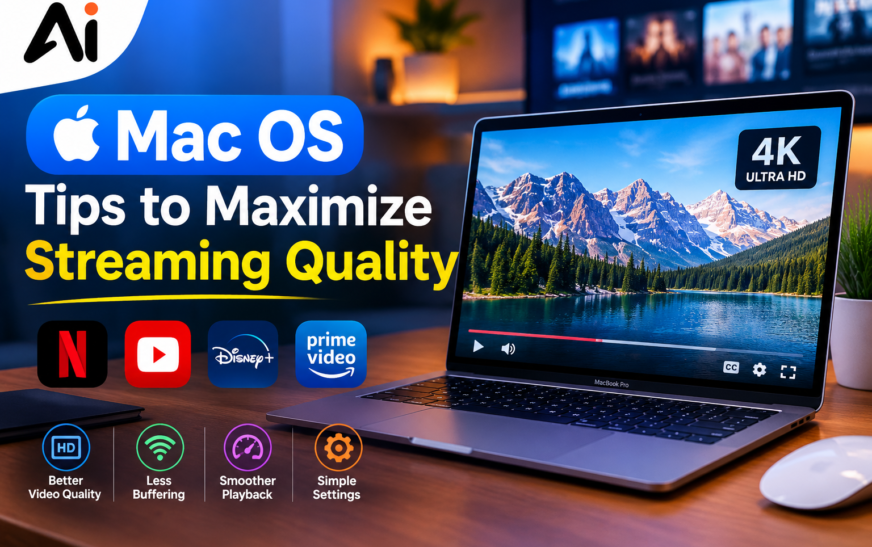
Streaming on a Mac should feel smooth and sharp, but buffering, blurry video, and sudden quality drops can quickly ruin the experience. Whether you are watching movies, live sports, YouTube videos, or other online content, your Mac streaming quality depends on several factors, including internet speed, browser performance, system resources, and streaming settings.
The good news is that you do not always need new hardware to improve your viewing experience. With the right macOS streaming settings and a few simple performance adjustments, you can make HD and even 4K streaming more stable.
To maximize streaming quality on Mac, start by checking your internet speed and making sure your Wi-Fi connection is stable. Then update macOS and your browser, close unnecessary background applications, clear browser cache, enable hardware acceleration when available, and select an appropriate streaming resolution.
If buffering continues, reducing video quality from 4K to 1080p can help when your network cannot consistently handle higher bandwidth.
Key Takeaways
- Check your internet speed before changing Mac settings.
- Use a stable Wi-Fi or Ethernet connection for streaming.
- Select HD or 4K quality when your internet connection supports it.
- Keep macOS and your browser updated.
- Close unnecessary apps and downloads running in the background.
- Clear your browser cache when playback becomes slow or unstable.
- Enable hardware acceleration when supported.
- Reduce streaming resolution if buffering continues.
1. Check Your Internet Speed for Better Mac Streaming
Your internet connection is one of the first things to check when streaming quality is poor. A Mac can have excellent hardware and still struggle with video playback if the network connection is slow or unstable.
Run an internet speed test and compare the result with the requirements of your streaming service. HD video generally requires less bandwidth than 4K streaming, so higher-resolution content needs a faster and more consistent connection.
Also check whether other devices are using the same network. Large downloads, cloud backups, gaming updates, and multiple video streams can consume available bandwidth and cause buffering.
If your internet speed looks normal but streaming remains unstable, continue with the Mac and browser settings below.
2. Optimize Wi-Fi Settings for Streaming on Mac
A strong Wi-Fi connection can make a significant difference to streaming performance. If your Mac is far away from the router, walls and other obstacles can weaken the wireless signal.
Move closer to your router when possible and avoid placing the router behind furniture or inside enclosed spaces. If your router supports multiple Wi-Fi bands, connecting to the less congested or faster band can also improve performance.
For demanding 4K streaming, an Ethernet connection can provide even greater stability if your Mac and network setup support it.
3. Adjust Streaming Resolution for Better Video Quality
Higher resolution does not always mean a better viewing experience if your network cannot maintain it.
For example, 4K streaming requires considerably more bandwidth than standard HD video. If a 4K video constantly buffers, switching to 1080p may provide a smoother experience.
Most major streaming platforms allow you to adjust video quality through their playback or account settings. Choose the highest resolution that your connection can handle consistently rather than automatically selecting the maximum available quality.
4. Update macOS to Improve Streaming Performance
Keeping macOS updated can help maintain compatibility with modern browsers, video technologies, security standards, and streaming platforms.
Open System Settings on your Mac and check for available software updates. If an update is available, install it when convenient and restart your Mac afterward.
An outdated operating system may not always cause streaming problems, but updating macOS removes one potential source of compatibility and performance issues.
5. Keep Your Browser Updated for Smooth Streaming
Your browser plays an important role in online video playback. Safari, Chrome, Firefox, and other browsers regularly receive updates that improve compatibility, security, and performance.
If streaming works poorly in one browser, try the same video in another updated browser. This can help determine whether the problem is related to the website, browser configuration, or Mac itself. If your Mac is also becoming slow or unresponsive during playback, see our guide on Mac computer freezing for additional troubleshooting steps.
Avoid using outdated browser versions when possible, especially for services that rely on modern video playback technologies.
6. Close Background Apps That Affect Mac Streaming Performance
Running many applications at the same time can consume memory, processor resources, and network bandwidth.
Before starting a demanding stream, close applications that you do not need. Pay particular attention to apps performing downloads, cloud synchronization, video editing, gaming updates, or other intensive tasks.
You can also check Activity Monitor to see which applications are using significant CPU, memory, energy, or network resources.
Reducing unnecessary background activity can leave more system resources available for smooth video playback.
7. Clear Browser Cache to Reduce Streaming Problems
A large or problematic browser cache can sometimes contribute to website loading or playback issues.
If a streaming website suddenly becomes slow, videos fail to load correctly, or playback behaves differently than usual, clearing cached browser data can be worth trying.
Keep in mind that clearing cookies may sign you out of websites, so check which data your browser is removing before confirming the action.
After clearing the relevant data, restart the browser and test the streaming service again.
8. Enable Hardware Acceleration for Better Video Playback
Hardware acceleration allows compatible browsers to use your Mac’s graphics hardware for certain tasks, including parts of video rendering and playback.
When available, this feature can reduce the amount of work performed by the CPU and improve playback efficiency.
The exact hardware acceleration settings depend on the browser and version you are using. If you experience unusual playback problems after changing the setting, restore the previous configuration and test again.
9. Optimize Your Mac for HD and 4K Streaming
4K streaming places greater demands on your network and computer than standard-definition or HD video.
Before streaming 4K content, make sure your Mac is not overloaded with demanding applications. Close unnecessary programs and allow resource-intensive tasks such as large downloads or video exports to finish when possible.
Your display also matters. If you are watching 4K content on a display that cannot show the additional resolution, selecting a lower resolution may provide a similar visual experience while requiring less bandwidth. If you notice display-related problems, check our guide on shadow on computer monitor for additional troubleshooting tips.
10. Choose the Best Browser for Streaming on Mac
There is no single browser that is universally best for every Mac user or streaming service.
Safari is deeply integrated with macOS, while Chrome and Firefox provide their own features and compatibility options. The best choice can depend on the streaming platform, browser version, extensions, and your Mac model.
If one browser produces buffering or playback errors, test the same service using another current browser. This simple comparison can help identify whether the browser is contributing to the problem.
11. Reduce Video Buffering by Improving Network Performance
If your Mac keeps buffering, look beyond the computer itself.
First, pause unnecessary downloads and check whether other devices are heavily using your network. Restarting your router can also help with temporary network problems.
If buffering happens mainly during busy periods, network congestion may be contributing to the issue. Using a wired connection or improving your Wi-Fi setup can provide a more consistent connection.
You should also check whether the streaming service itself is experiencing an outage before changing extensive Mac settings. If the problem continues after improving your connection, try adjusting your streaming resolution or testing the video in another browser.
12. Check Mac Storage and System Performance
Your Mac needs enough available storage and system resources to operate efficiently. Extremely low storage can make general system management more difficult and may affect overall performance.
Check your available storage through System Settings and remove unnecessary files or applications if your drive is nearly full.
Also watch for applications that consistently consume excessive CPU or memory. If your Mac becomes unusually slow even when you are not streaming, the streaming problem may be part of a broader performance issue. If your Mac becomes unusually slow even when you are not streaming, the streaming problem may be part of a broader performance issue. You can also check our guide on Mac computer freezing for additional troubleshooting steps.
13. Use Ethernet for More Stable Streaming Quality
Wi-Fi is convenient, but Ethernet can provide a more consistent network connection.
If your Mac supports Ethernet directly or through a compatible adapter, connecting it to your router can reduce wireless interference and improve connection stability.
This can be particularly useful for 4K video, live sports, gaming streams, and other content where interruptions are noticeable.
If Ethernet is not practical, improving your router placement and Wi-Fi signal can still make a meaningful difference.
14. Adjust Streaming Settings When Your Mac Keeps Buffering
If you have tried the basic fixes and your Mac still buffers, adjust the streaming quality.
Instead of forcing 4K playback, try 1080p or another lower setting and monitor the results. If the video becomes smooth immediately, your network may not be able to maintain the higher resolution consistently.
You can also test different browsers, disable unnecessary extensions, close background applications, and restart your Mac. If you use Excel on Mac and are looking for tips for Excel autoformat on Mac, review the relevant settings and formatting options separately.
Making one change at a time is useful because it helps you identify which setting actually improves performance.
How to Fix Poor Streaming Quality on Mac
Poor streaming quality can come from several different sources. Your internet connection, Wi-Fi signal, browser, macOS version, streaming platform, and available system resources can all affect playback.
Start with the simplest checks: test your internet speed, restart the router, update your software, close unnecessary applications, and try another browser.
If the problem occurs only on one streaming platform, the issue may be related to that service rather than your Mac.
Why Does Streaming Quality Drop on Mac?
Streaming quality can drop when your internet connection becomes unstable or when the streaming service automatically lowers resolution to prevent buffering.
Other possible factors include network congestion, background downloads, browser issues, outdated software, or high system resource usage.
If the quality changes frequently, monitor your network connection and test the same video at different times. This can help determine whether the problem is related to your connection or the streaming platform.
Conclusion
Improving streaming quality on Mac is usually about finding the right balance between internet speed, streaming resolution, browser performance, and system resources. Start by checking your connection and Wi-Fi stability, then update macOS and your browser, close unnecessary background applications, and adjust video quality according to your available bandwidth.
For demanding HD and 4K streaming, a stable connection is especially important. If buffering continues, lowering the resolution can often provide a smoother experience than forcing the highest possible quality.
FAQs
How can I improve streaming quality on my Mac?
Check your internet speed, use a stable Wi-Fi or Ethernet connection, update macOS and your browser, close unnecessary applications, and choose a streaming resolution your connection can consistently support.
Why does my Mac keep buffering while streaming?
Buffering can be caused by slow or unstable internet, network congestion, background downloads, browser problems, or streaming at a resolution that requires more bandwidth than your connection can provide.
What internet speed is needed for 4K streaming on Mac?
The exact requirement varies by streaming service, but 4K video generally needs substantially more bandwidth than HD streaming. A stable connection is just as important as the headline download speed.
Is Safari good for streaming on Mac?
Safari can provide smooth streaming on Mac, particularly when macOS and Safari are updated. However, performance can vary by streaming service, browser settings, extensions, and Mac model.
How do I reduce video buffering on Mac?
Start by checking your internet connection, reducing streaming resolution, closing bandwidth-heavy applications, improving Wi-Fi, clearing relevant browser data, and testing another browser.