
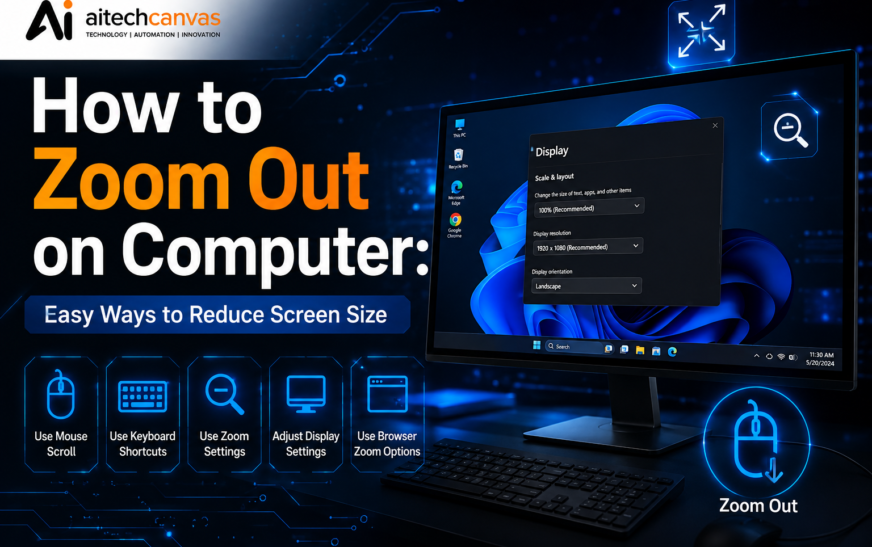
Have you ever opened a website or application and suddenly found everything on the screen looking too large? Maybe the text is huge, images are taking up too much space, or you cannot see the complete webpage without scrolling sideways. In such situations, knowing how to zoom out on computer can make your screen easier to use and help you see more content at once.
Zooming out is a simple feature available on most modern computers and web browsers. Whether you are using Google Chrome, Microsoft Edge, Firefox, Windows, or a Mac, you can usually reduce the size of content with a keyboard shortcut or a few clicks.
In this guide, we will explain several simple ways to zoom out on a computer, including keyboard shortcuts, browser controls, touchpad gestures, and Windows accessibility options.
What Does Zoom Out Mean on a Computer?
Zooming out reduces the visual size of content displayed on your screen. It can make text, images, buttons, and other webpage elements appear smaller. For example, if a webpage is displayed at 125% or 150% zoom, reducing it to 100% can allow more content to fit on your screen.
It is important to understand that browser zoom and screen magnification are not always the same thing. Browser zoom normally affects the webpage you are viewing, while a system magnifier can enlarge almost everything displayed on your computer.
How to Zoom Out on Computer Using the Keyboard
One of the quickest methods is using a keyboard shortcut.
If you are using a Windows computer, open the webpage or application you want to make smaller and press:
Ctrl + – (Minus)
Each time you press the shortcut, the content will become smaller.
If you accidentally zoom out too far, you can restore the default zoom by pressing:
Ctrl + 0 (Zero)
This is especially useful when browsing websites because you can quickly return the page to its normal zoom level.
On a Mac, the equivalent shortcut is:
Command + –
And to return to the default level:
Command + 0
These shortcuts are particularly useful when you are working with websites, online documents, or other applications that support zoom controls.
How to Zoom Out in Google Chrome
Google Chrome provides built-in zoom controls that allow you to make webpage content larger or smaller.
To zoom out in Chrome:
- Open Google Chrome.
- Visit the webpage you want to resize.
- Click the three-dot menu in the upper-right corner.
- Find the Zoom option.
- Click the minus (-) button to reduce the page size.
Google’s official Chrome Help documentation confirms that Windows and Linux users can use Ctrl + – to make webpage content smaller. Mac users can use Command + -.
This method is useful if you prefer using the mouse instead of keyboard shortcuts.
If you regularly visit a website that looks too large or too small, Chrome can also remember a zoom level for individual websites.
How to Zoom Out in Microsoft Edge
Microsoft Edge also supports standard browser zoom controls.
To zoom out:
- Open Microsoft Edge.
- Go to the website you want to resize.
- Click the three-dot menu.
- Locate the Zoom option.
- Select the minus button until the page reaches your preferred size.
You can also use the keyboard shortcut Ctrl + – on Windows.
If you are switching between Chrome and Edge, the keyboard shortcut is convenient because you do not have to learn a completely different method.
How to Zoom Out on Computer Using a Touchpad
Laptop users can sometimes change the size of content using touchpad gestures. However, the exact behavior can depend on your computer, operating system, browser, and touchpad settings. If pinch-to-zoom is enabled, place two fingers on the touchpad and move them closer together to zoom out.
If this gesture does not work, check your laptop’s touchpad settings. Some computers allow you to enable or disable multi-finger gestures. Touchpad zoom can be convenient when you do not want to use keyboard shortcuts, but the Ctrl + – method is generally more consistent when you are working inside a web browser.
How to Zoom Out on Windows When the Entire Screen Is Large
Sometimes the problem is not browser zoom at all. If your desktop icons, taskbar, applications, and other elements all appear unusually large, Windows’ Magnifier may have been enabled. In that situation, you may need to reduce or turn off screen magnification instead of changing browser zoom.
Windows includes accessibility features designed to make content easier to see. If Magnifier is active, you can use the available Windows Magnifier controls to reduce magnification or turn it off. This distinction is important because changing Chrome’s zoom will not necessarily fix a screen-wide magnification problem.
How to Zoom Out on Computer When a Website Is Too Large
Sometimes websites appear too large because their browser zoom level was accidentally changed.
For example, you may notice:
- Only part of the webpage is visible.
- Text appears unusually large.
- Images take up most of the screen.
- Buttons appear bigger than normal.
- You have to scroll horizontally to see the page.
- The website layout looks different from another computer.
The easiest solution is usually to press Ctrl + 0 on Windows or Command + 0 on Mac. This resets the browser’s zoom level to its default setting in supported browsers.
After resetting it, you can use the zoom-out shortcut if you want a smaller view.
If you are interested in other common computer display problems, you can also read this helpful guide about shadow on computer monitor.
Choosing the Best Zoom Level
There is no single zoom level that is perfect for everyone.
Many users prefer 100%, but you may find 90%, 80%, or another level more comfortable depending on your screen size and eyesight.
For example:
- 80–90%: Useful when you want to see more content.
- 100%: Usually a good standard viewing level.
- 110–125%: Helpful when normal text feels too small.
- 150% or higher: Can be useful for accessibility, although less content will fit on the screen.
The goal is to choose a level that makes the content comfortable to read while allowing you to navigate the page easily.
Why Zoom Controls Are Useful
Learning how to zoom out on computer can be useful in many everyday situations.
Students may need to see more of an online assignment at once. Office workers may want to view a wider spreadsheet or webpage. Designers and developers may need to inspect more of a website layout. Older users may also adjust zoom levels to find a comfortable balance between readability and screen space.
Zoom controls can also help when websites have responsive layouts that behave differently at different sizes. If you are interested in how technology is changing everyday computer tasks, you can also explore this article about why AI tools are important.
Common Mistakes When Zooming Out
One common mistake is confusing browser zoom with Windows display scaling. Browser zoom usually changes the size of content on a particular webpage, while display scaling can affect applications and other parts of the operating system. Another mistake is zooming out too much. If text becomes extremely small, reading can become uncomfortable.
A better approach is to start at 100%, then reduce the zoom gradually until you find a comfortable level. Also remember that some websites may have their own text-size or accessibility settings. In those cases, browser zoom may not be the only solution.
Final Thoughts
Knowing how to zoom out on computer is a small but useful skill that can make browsing and everyday computer work much easier. Whether a webpage suddenly appears too large or you simply want to fit more information on your screen, you can usually solve the problem within seconds. For most Windows users, Ctrl + – is the quickest way to zoom out, while Ctrl + 0 can restore the default browser zoom. Mac users can use the corresponding Command shortcuts.
If browser zoom does not solve the problem and the entire computer screen appears enlarged, check whether a system magnification feature is active. Once you understand the difference between browser zoom and system display settings, adjusting your screen becomes much easier. With these simple methods, you can quickly create a more comfortable viewing experience whether you are browsing websites, reading documents, studying, or working online.
Frequently Asked Questions
1. What is the shortcut to zoom out on a computer?
On Windows and Linux, press Ctrl + -. On Mac, press Command + -.
2. How do I reset my computer browser zoom?
Press Ctrl + 0 on Windows or Command + 0 on Mac in most modern browsers.
3. Why is my computer screen suddenly very large?
Your browser zoom or system Magnifier may have been activated accidentally. Check both if the entire screen appears enlarged.
4. Can I zoom out without using the keyboard?
Yes. Most browsers provide a Zoom option in their menu, where you can click the minus button.
5. Does zooming out damage my computer?
No. Zooming out only changes how content is displayed. It does not damage your computer or change the actual files on your device.